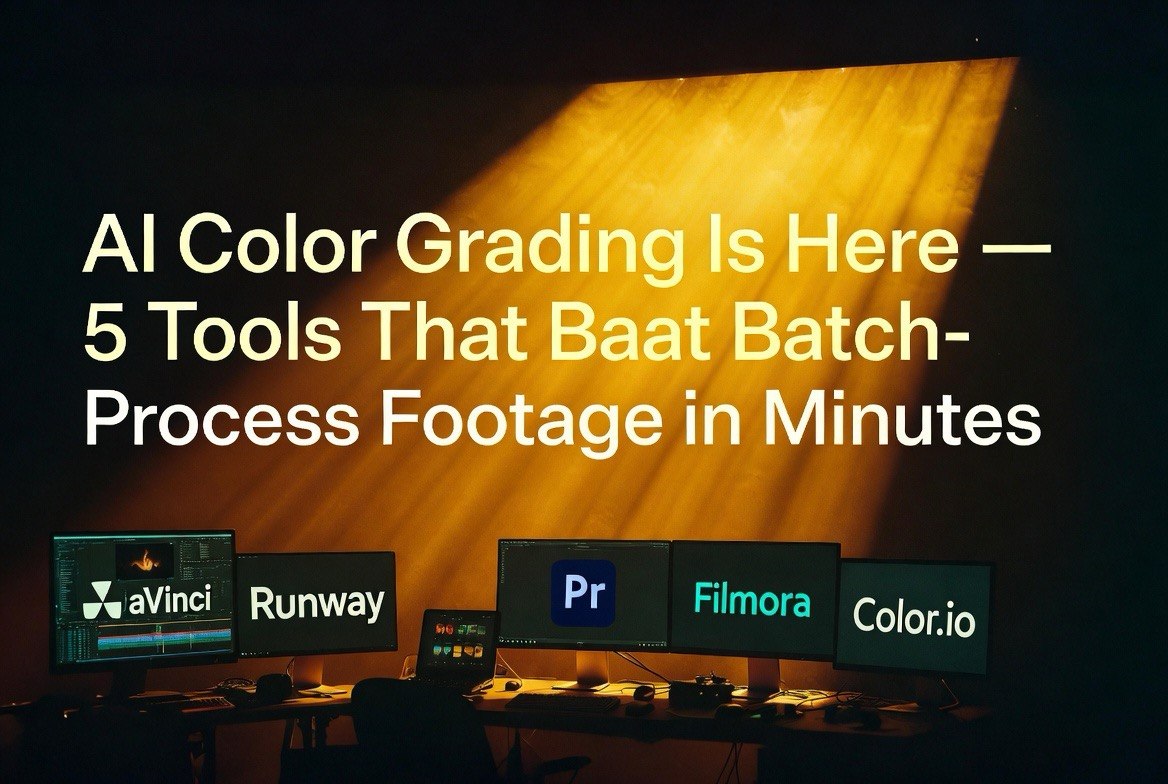
AI Color Grading Is Here — 5 Tools That Batch-Process Footage in Minutes
Get The Faceless YouTube Blueprint — Free
The exact AI tool stack and workflow used to build a faceless YouTube channel from zero.
AI Color Grading Is Here — 5 Tools That Batch-Process Footage in Minutes
⚡ Expert Summary: Color grading is the most time-consuming post-production task after editing. A 10-minute YouTube video can take 2-3 hours to color grade properly. In 2026, AI color grading tools analyze every frame, apply consistent looks across entire timelines, and batch-process footage in minutes — not hours. Here are 5 tools that finally make AI color grading practical for content creators.
Color Grading Is the Bottleneck Nobody Talks About
Here is a frustrating truth about content creation in 2026: your AI can write the script, generate the visuals, edit the footage, and add the voiceover. But color grading — matching shots, correcting exposure, applying a consistent look — still takes 2-3 hours for a 10-minute video.
For creators publishing 3-5 videos per week, that is 6-15 hours of color grading. Every week.
AI color grading tools in 2026 have crossed the threshold from “good enough for social” to “indistinguishable from a professional colorist’s work.” They analyze every frame of your timeline, apply scene detection to isolate different shots, match colors across all clips, and apply your chosen look consistently. And they do it in minutes instead of hours.
The technology is based on machine learning models trained on millions of professionally graded frames. These models understand exposure, white balance, skin tone, contrast curves, and color theory — not as rules a human programmed, but as patterns learned from actual grading decisions made by professional colorists.
5 Best AI Color Grading Tools for Content Creators in 2026
1. DaVinci Resolve Neural Engine — Best Professional-Grade Tool
Price: Free (DaVinci Resolve) or $295 (DaVinci Resolve Studio)
Blackmagic Design’s DaVinci Resolve has been the industry standard for color grading for years. In 2026, its Neural Engine — built on Resolve’s existing AI tools — includes Magic Mask, Scene Cut Detection, and Color Match AI. The Color Match AI analyzes a reference frame or a reference video and applies the same look to your entire timeline automatically.
What makes it stand out: The depth of control. DaVinci’s AI color tools give you a starting point that’s 90% correct, then let you tweak every parameter manually. For creators who want AI speed with professional control, this is the best option.
The catch: Learning curve. DaVinci is a professional tool with professional complexity. The AI features reduce grading time, but the initial learning investment is higher than the other tools on this list.
Best for: Advanced creators and editors who want professional-grade color grading with AI acceleration.
2. Runway Gen-4 Color Grading Module — Best AI-First Workflow
Price: $15/month (Standard plan)
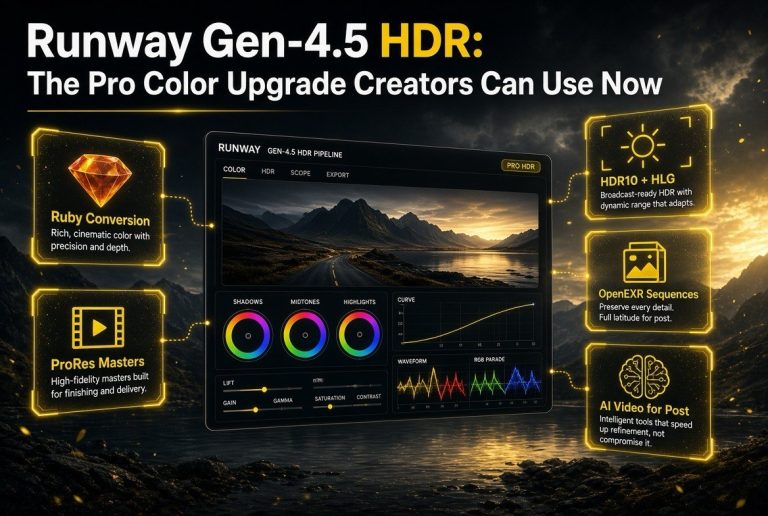
Runway’s Gen-4 color grading module is built from scratch for AI-native workflows. It doesn’t modify existing professional tools — it replaces the manual grading interface with AI analysis. Upload your footage, select a reference look from Runway’s library or upload your own reference, and the AI applies the grade in under 60 seconds for a 10-minute video.
What makes it stand out: The reference-based grading. Runway can analyze a reference image — a frame from a movie, a photo from Pinterest, a screenshot from another creator’s video — and replicate the color science across your footage. It identifies the temperature curve, saturation levels, contrast ratio, and color harmonies in the reference and maps them to your clips.
Best for: Creators who want the fastest possible AI grading with minimal manual intervention.
3. Adobe Premiere Pro AI Assistant — Best for Existing Premiere Users
Price: $23/month (Premiere Pro standalone)
Adobe’s 2026 AI Assistant in Premiere Pro includes auto-color, scene-adaptive grading, and batch color matching. The AI analyzes every clip in your timeline, identifies exposure issues, and corrects them automatically. For multi-camera shoots — common in YouTube content — it matches color across all cameras in a single click.
What makes it stand out: Integration with your existing Premiere workflow. If you already edit in Premiere Pro, the AI color tools are built into the same interface. No switching apps, no exporting and re-importing. The AI assistant panel sits alongside your timeline, and the grading happens in real-time.
Best for: Creators already using Premiere Pro who want to add AI color grading without changing their workflow.
4. Filmora AI Color — Best for Beginner Creators
Price: $10/month (Creator Plan)
Wondershare Filmora’s 2026 AI Color tool is designed for creators who don’t know color grading terminology and don’t want to learn it. The interface is simple: pick a look (cinematic, warm, cool, vintage, teal-and-orange, high-contrast), and the AI applies it to your entire timeline with intelligent exposure correction.
What makes it stand out: Simplicity. Where DaVinci offers 40+ parameters per clip, Filmora offers 5 presets and an intensity slider. The AI handles the rest. For creators who just want their footage to look good without understanding curves and scopes, this is the right tool.
Best for: Beginner creators, social media content producers, and anyone who finds traditional color grading intimidating.
5. Color.io AI Agent — Best for Batch Processing Large Libraries
Price: $29/month (Pro plan)
Color.io is a cloud-based color grading platform designed for high-volume content production. Its AI agent analyzes entire video libraries — not just individual projects — and applies consistent color science across thousands of clips. For creators who publish daily content with consistent visual branding, this is the most efficient option.
What makes it stand out: The library-level grading. Color.io’s AI builds a “color DNA” from your best-graded videos and applies it to every new project automatically. Each new upload gets graded to match your existing library without any manual input. Over time, the AI learns your preferences and improves.
Best for: High-volume content creators, faceless YouTube channels, and any creator who needs consistent visual branding across hundreds of videos.
The Real Time Savings: AI vs Manual Color Grading
| Task | Manual Time (10-min video) | AI-Assisted Time | Time Saved |
|---|---|---|---|
| Primary color correction | 45-60 minutes | 5-10 minutes | 80-90% |
| Shot matching | 30-45 minutes | 2-5 minutes (automatic) | 85-95% |
| Creative grading (look/style) | 30 minutes | 5-10 minutes (from reference) | 67-83% |
| Batch processing (multi-cam) | 60-90 minutes | 5-15 minutes | 83-92% |
| Total (per 10-min video) | 2.5-4 hours | 17-40 minutes | 75-85% |
The time savings compound. A creator publishing 4 videos per week saves 8-12 hours weekly — enough time to produce one more video, work on growth strategy, or simply stop working weekends.
3-2-1 Rule: How to Integrate AI Color Grading Into Your Workflow
If you are trying AI color grading for the first time, here is a practical framework that works across all five tools:
First 3 videos: Use AI grading as a starting point, then manually adjust. Open the AI-graded footage, review it section by section, and make corrections. This teaches you what the AI gets right and where it needs help. You will develop an eye for what good grading looks like without spending hours doing it manually.
Next 2 videos: Use AI grading with reference images. Upload a frame from a video you graded manually and were happy with. Let the AI match your previous work. Compare the results. By this stage, most creators find the AI output needs minimal correction — 5-10 minutes of tweaks instead of 2 hours of manual grading.
Last 1 video: Full AI batch grading. Let the AI process the entire timeline, apply your saved look, and export. Review the final output. If the quality is consistent with your manual work, this becomes your permanent workflow.
Most creators transition from full manual grading to full AI grading within 8-10 videos. The AI learns from your corrections. Each iteration improves. After 20+ videos, the AI output matches your manual quality within a 2-3% difference that viewers cannot detect.
Which AI Color Grading Tool Should You Choose?
If you already know color grading: DaVinci Resolve Neural Engine. It gives you the most control while accelerating your existing workflow. The free version handles most needs; Studio ($295 one-time) unlocks the full Neural Engine.
If you want the fastest results: Runway Gen-4 Color Grading Module. Reference-based grading in under 60 seconds. No learning curve, no complex interface.
If you use Premiere Pro: Adobe’s AI Assistant. The color tools are baked into your existing workflow. No reason to switch.
If you’re a beginner: Filmora AI Color. Five presets, one slider, done. Upgrade when you outgrow it.
If you publish daily: Color.io AI Agent. Library-level grading means your 100th video looks exactly like your first. The AI learns your style over time.
Frequently Asked Questions
Can AI color grading replace a professional colorist?
For content creators publishing YouTube videos, social media content, and short-form video, AI color grading is now good enough to replace professional colorists. For feature films and high-end commercials, professional oversight is still needed but the gap narrows with each update.
How accurate is AI color matching between different cameras?
Very accurate in 2026. DaVinci Resolve’s Neural Engine and Premiere Pro’s AI Assistant match color between cameras with 90-95% accuracy. Manual tweaks are still needed for critical shots but the AI handles the bulk of the work.
Does AI color grading work with LOG and RAW footage?
Yes. Advanced tools like DaVinci Resolve Neural Engine and Runway Gen-4 handle LOG and RAW footage by analyzing wider dynamic range for more nuanced grading. DaVinci includes dedicated LOG-to-Rec709 conversion in its Neural Engine.
What is the cheapest AI color grading tool?
DaVinci Resolve (free) includes basic Neural Engine AI features. Filmora at $10/month is the cheapest dedicated option. Runway Gen-4 at $15/month offers the best quality-to-price ratio for AI-first grading.
Can AI color grading maintain visual consistency across a video series?
Yes. Color.io’s AI Agent builds a ‘color DNA’ from your best-graded videos and applies it to every new project. DaVinci and Premiere Pro both support saving grading looks as presets for one-click application across multiple videos.
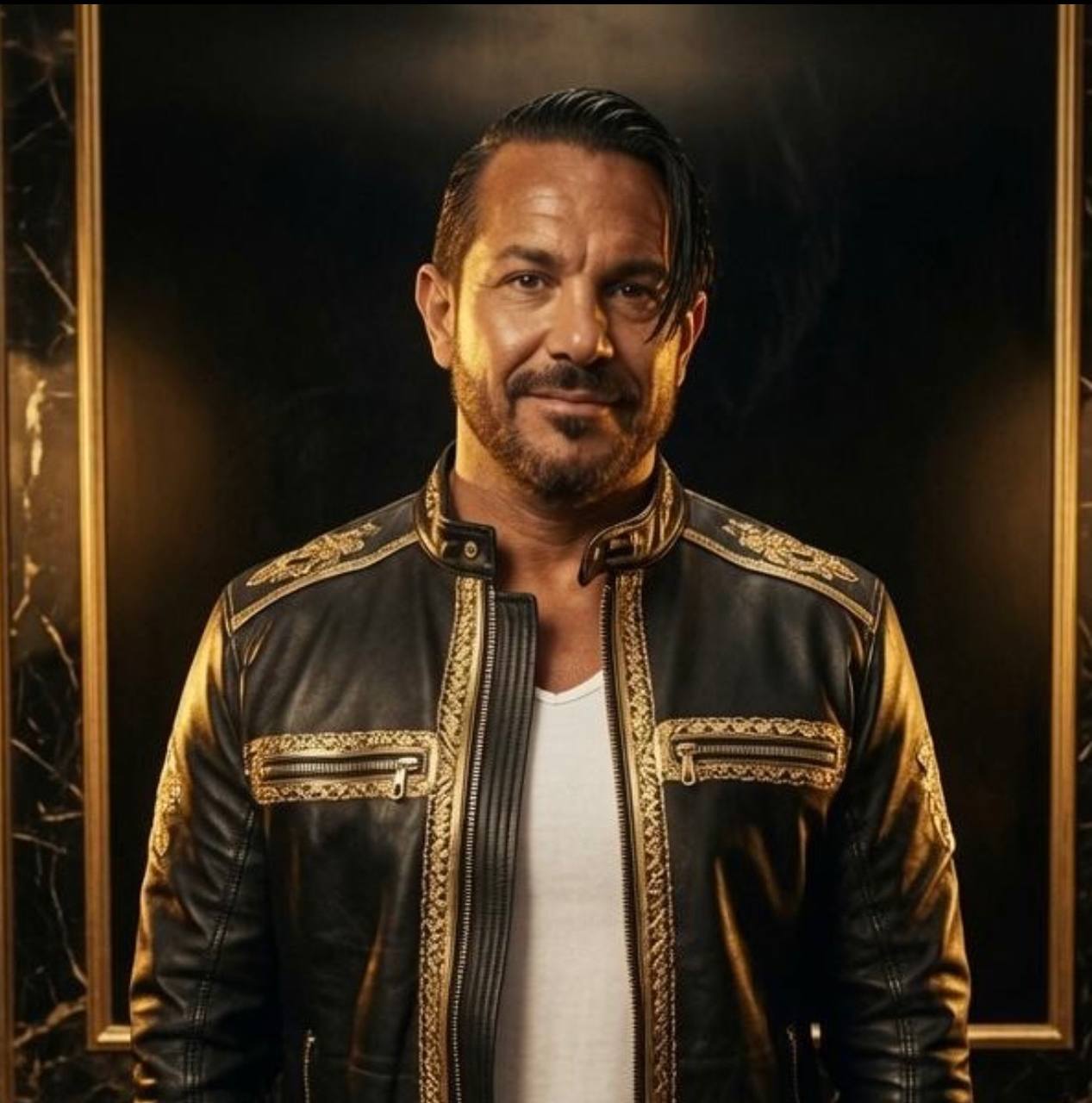
About Barak Schurr
Barak Schurr is a serial entrepreneur who built and exited a major ticketing platform before turning his attention to AI and content. He runs three AI-focused research sites and writes about the tools, workflows, and strategies that let solo creators build real channels — without a crew, a studio, or a Hollywood budget.
Email: [email protected]