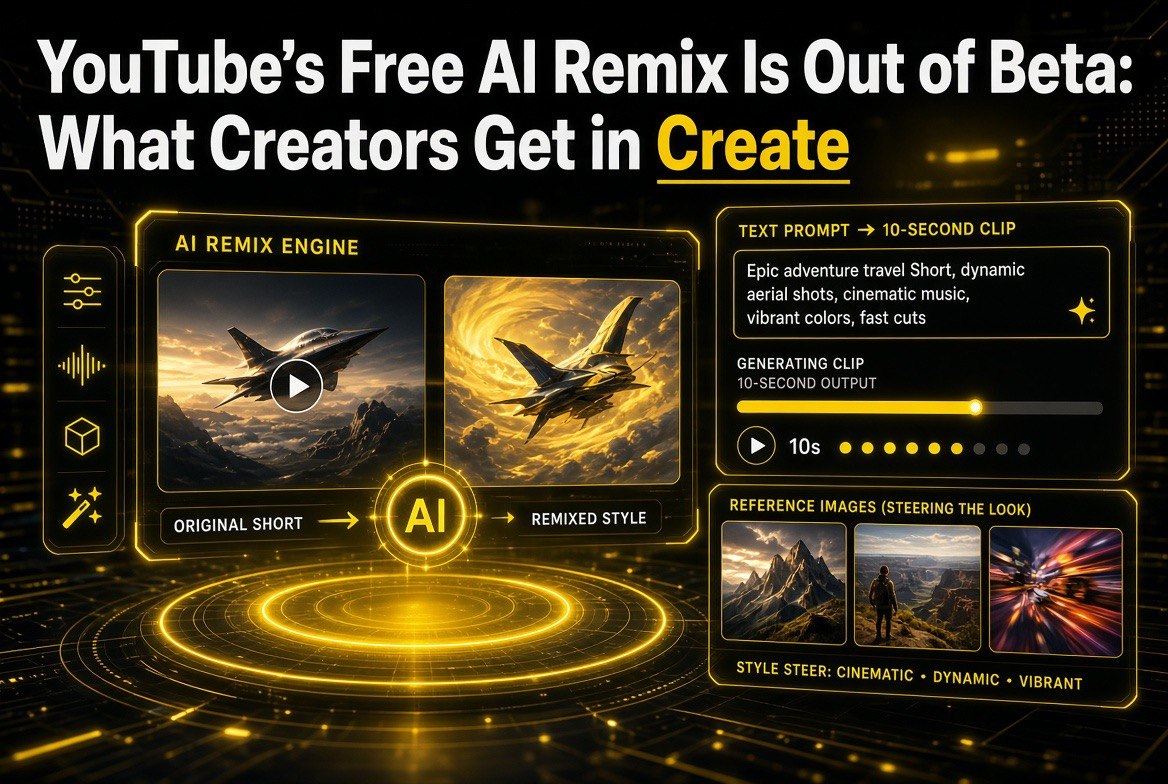
YouTube’s Free AI Remix Is Out of Beta: What Creators Get in Create
Get The Faceless YouTube Blueprint — Free
The exact AI tool stack and workflow used to build a faceless YouTube channel from zero.
YouTube’s Free AI Remix Is Out of Beta: What Creators Get in Create
⚡ Expert Summary: Google has moved a real generation of AI video tools into the hands of everyday creators for free. The generative video features built on Gemini Omni — announced at Google I/O on May 19, 2026 — began rolling out at no cost that same week inside the YouTube app’s Shorts Remix tool and the standalone YouTube Create app, and they have kept expanding through mid-2026. This means a solo creator can now prompt an AI to remix a Short, change its style or scene, drop themselves into footage, or generate short clips straight from a text prompt and a few reference images, without a paid AI subscription. Watermarks, labels, and creator opt-out controls ride along. This guide breaks down what the rollout actually gives creators, exactly how to use it, and the fine print about control and transparency you should know before you build around it.
The first time most people see an AI video remix, they assume it is a gimmick locked behind a premium wall. That assumption is now outdated. Starting in 2026, YouTube turned the generative AI tools built around Gemini Omni into a free, in-app part of the creator workflow rather than a paid add-on. For independent channels — particularly those running Shorts-heavy or faceless formats where fresh visual variety wins attention — this changes what is possible without hiring a motion designer or paying for stock footage.
This piece is a practical take on the current state of the rollout: what the tools do, how a solo creator actually gets to them, the transparency system around generated content, and the honest limits of relying on them today. The goal is not to hype a feature wrapper but to give you a working picture so you can decide where — if anywhere — AI remixing fits your publishing schedule.
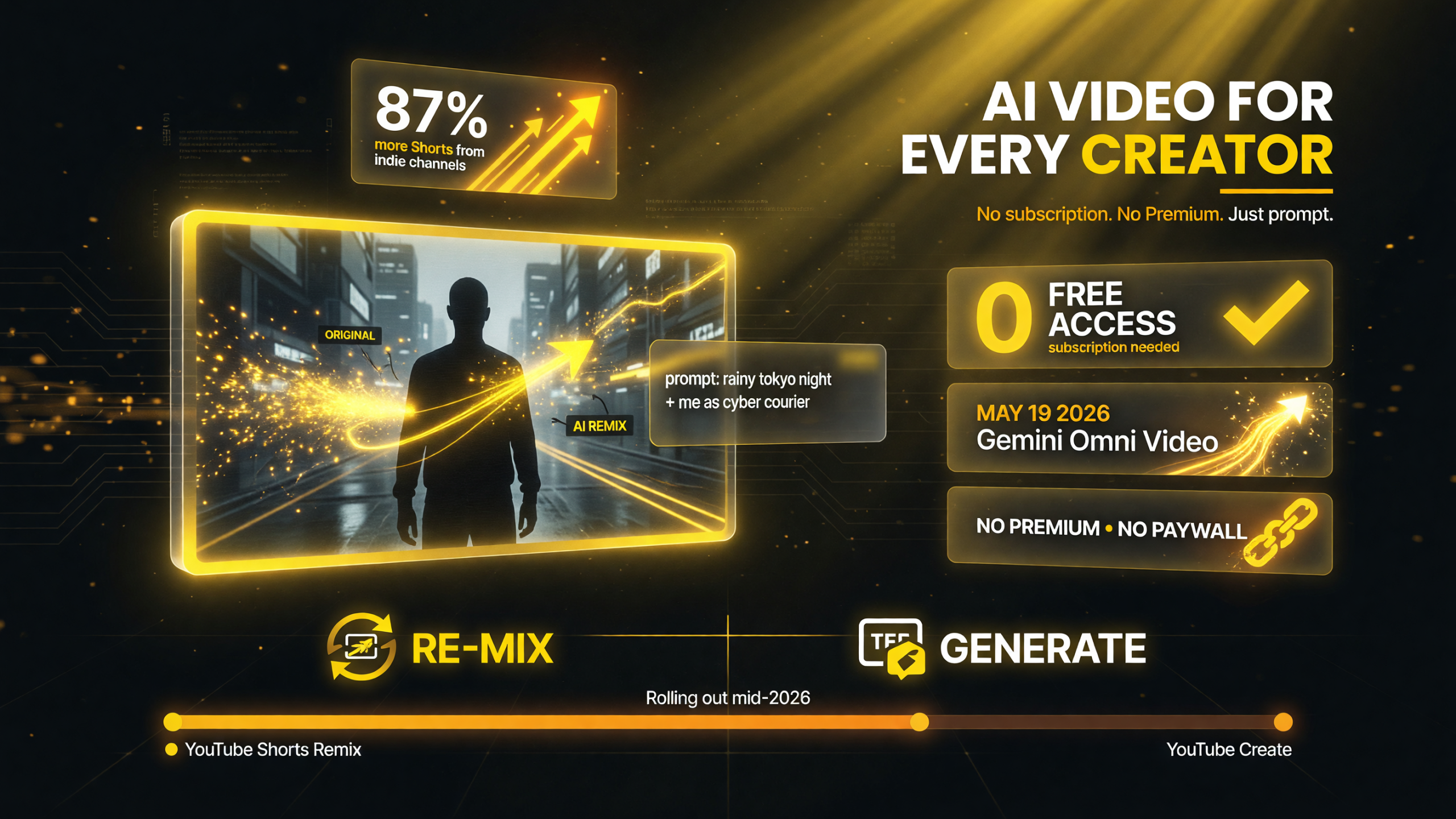
The Gemini Omni-based video tools inside Shorts Remix and YouTube Create need no AI subscription and no YouTube Premium — a solo creator can remix an eligible Short or generate a clip from a prompt, free at the point of use.
The Rollout: From Beta to Broad, Free Access
The defining shift in 2026 is access. Google announced the Gemini Omni-based video creation and remixing tools during its Google I/O event on May 19, 2026, and they began reaching users at no cost almost immediately after. Crucially, use inside the YouTube Shorts and YouTube Create surfaces does not require a Google AI subscription like Gemini Plus, Pro, or Ultra, and it does not require YouTube Premium. That is the headline difference from earlier, narrower launches: this is a mainstream creator feature with no premium paywall at the point of use.
Access has expanded in waves rather than all at once. An update on June 25, 2026 upgraded the tool’s “Create Video” experience with higher output quality, more natural motion, and support for generating clips up to ten seconds from reference frames — a meaningful jump for creators who want usable B-roll, not just novelty. The features are available in supported markets (for example, “Create Video” in Shorts is active in select countries on Android and iOS when the device language is set to English), and the rollout has continued to broaden through the year. As with most of YouTube’s AI tools, the practical test remains opening the app and checking whether the options appear on your account.
What You Can Actually Do With It
At its core, the rollout gives creators two related capabilities: remix an existing eligible video, or generate a new clip from a prompt. Both run on the same Gemini Omni foundation, and both are designed to live inside the shortest, highest-velocity format creators already make — the Short.
- Remix an eligible Short: You can take a video that allows remixing and ask the AI to transform it — change the scene aesthetic to a 90s vibe, convert it to pixel art or anime, alter the lighting or camera style, add or replace elements — while the model preserves the original clip’s narrative context rather than scrambling it.
- Generate from a text prompt: You can describe what you want and produce a new clip up to roughly ten seconds, optionally steering the visual identity by supplying up to three reference images. Those references are how a creator keeps a consistent look or even inserts their avatar into the result.
- AI-suggested edits: Beyond blank prompts, the flow offers suggested edits and a conversational path so you can refine a generation iteratively instead of starting over each time you are not happy with the first pass.
For a solo creator the practical value sits in the middle of that list. Consistency is the hardest thing to fake in AI video; reference images are the mechanism that makes “add me to this scene” or “keep it on-brand” actually work. Being able to hand the tool up to three frames that define your look is what separates a usable production shortcut from a one-off party trick.
The Two Places You’ll Find It
These tools live in two surfaces, and they serve slightly different jobs. In the main YouTube app, open any eligible Short and you will find a Remix (or Reimagine) option under its share and actions menu; you can also reach creation through the app’s media gallery or AI Playground entry points. That path is about transforming content that already exists. The separate YouTube Create app — Google’s free companion editor for Shorts-first channels — puts the generation tools alongside your normal editing timeline, so you can produce a clip with AI and slot it directly into a larger edit before publishing. If you are a Shorts-first creator you will likely spend most of your time in Create; if you only occasionally remix, the in-app path on an existing Short is the fastest route.
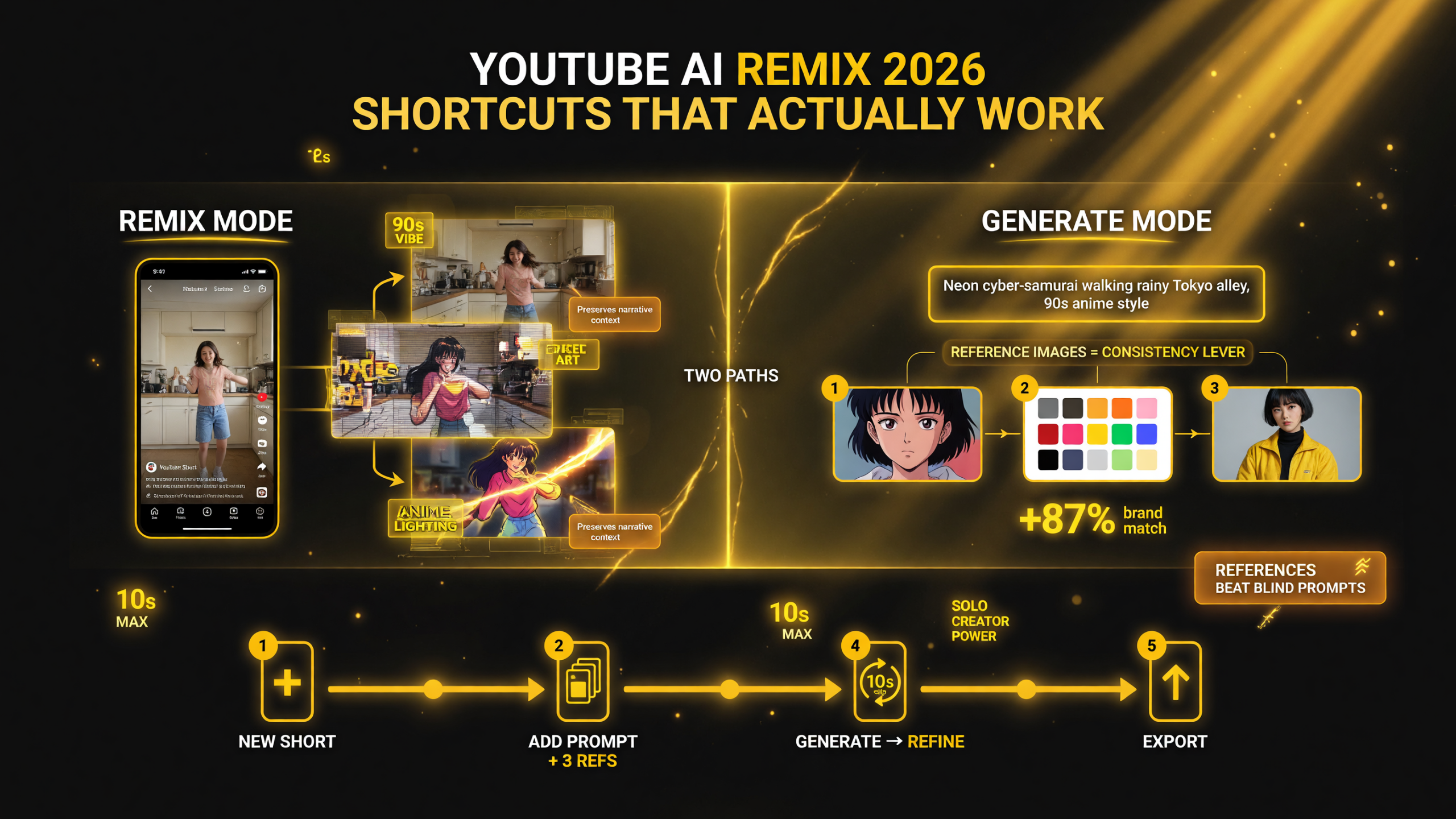
Two paths — remix an eligible Short or generate a clip from a prompt — and the practical Create-app sequence. Supplying up to three reference images is how a solo creator keeps the result on-brand or drops an avatar into the scene.
How to Use the AI Remix, Step by Step
The workflow is short enough that you can test it in a few minutes, but a little structure gets you better results than blindly prompting. Here is the practical sequence for generating a clip inside the YouTube Create app.
| Step | What to Do | Why It Matters |
|---|---|---|
| 1. Open Create and start a Short | Launch the free YouTube Create app, sign in with an eligible account, and open a new Short project or find the generate option in the editor toolbar. | Puts the AI tools next to your normal edit timeline so output drops straight into a real project. |
| 2. Pick generate for a new clip | Add a clip to the timeline and select the generate option rather than importing footage. | This is where text-to-video generation begins from scratch instead of editing existing media. |
| 3. Write a specific prompt | Describe subject, style, lighting, motion, and camera clearly and keep it within Community Guidelines. | Specific prompts are the difference between usable B-roll and a generic clip; the model follows detail. |
| 4. Add up to three reference images | Upload up to three frames — often your avatar or a signature object — to steer the visual identity. | Consistency and “add me to the scene” effects depend on references, not just words. |
| 5. Generate, refine, and export | Run a generation, review it, iterate with follow-up prompts if needed, then export or upload. | Short, fast iterations produce better results than one giant generation you hope is right. |
If you are remixing an existing Short instead, the path is even shorter: open the Short, tap the Remix or Reimagine option, enter your prompt and any reference images, and generate. Because the tool preserves the original clip’s context, remixes tend to read as stylized versions of your existing content rather than disconnected fragments, which keeps them recognizably yours even when the look changes dramatically.
The most important habit to build early is specificity. A generic prompt like “make this cool” produces generic output. A prompt that names a style (“90s VHS”), a subject, a camera move, and the lighting gives the model something concrete to honor. Combined with reference images, that level of detail is what lets a creator use these tools as a repeatable production asset rather than an occasional experiment.
Control and Transparency: The Fine Print That Matters
Any creator building part of a channel around AI generation needs to understand the guardrails, because they shape both audience trust and platform policy. The system is built around three layers: watermarks, labeling, and creator control over whether their content can be remixed at all.
Where the Boundaries Actually Are
Generated and remixed clips carry a SynthID digital watermark plus identifying metadata, and remixed Shorts link back to the original video so the provenance is visible rather than hidden. Visual remixes and synthetic content are labeled as altered or AI-generated, aligning with YouTube’s broader transparency push around synthetic media. Crucially for original creators, you can opt out of having your videos remixed — either per video or in bulk through your Shorts settings — and if you do, remixes using your content are removed. Likeness detection tools, which help protect against unauthorized use of someone’s face, are shipping or expanding for 18+ accounts. None of this is optional decoration; it is the framework that lets these features exist at scale without shredding trust or consent.
| Protection | What It Does | Why a Creator Should Care |
|---|---|---|
| SynthID watermark | Embeds an invisible marker and metadata into generated output. | Makes AI-generated content traceable, protecting viewers and honest creators alike. |
| Remix labels + link-back | Marks altered content and links remixes to the source video. | Keeps credit visible and signals synthetic content instead of hiding it. |
| Creator opt-out | Lets you block remixing per video or in bulk from your Shorts settings. | You decide whether your face and footage can be remixed at all. |
| Likeness detection | Flags unauthorized use of a creator’s face for 18+ accounts. | A guardrail against deepfake-style misuse of your likeness. |
There are real requirements baked in as well. Accounts must be 18 or older to use the features, tied to verification and the likeness controls. For creators who publish entirely AI-generated content, the existing synthetic-content labeling rules still apply on top of the watermark. None of this is unusual for a major platform, but it is worth understanding because it affects how you deploy generated clips: you are not just producing content, you are producing content with declared provenance your audience and the algorithm can see.
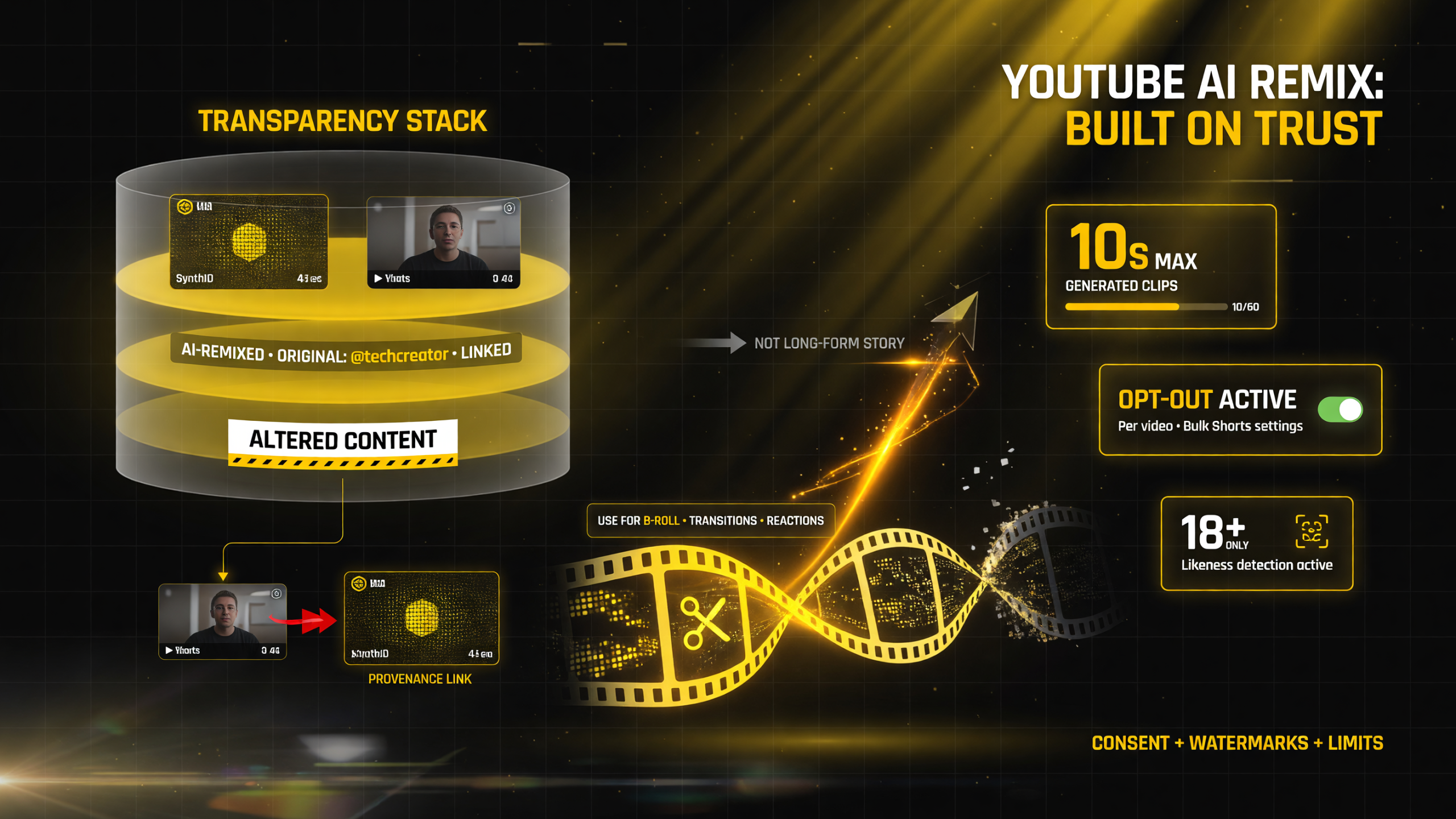
Generated and remixed clips ride a transparency stack — SynthID watermark, AI-remix labels that link back to the original, and opt-out controls for creators — while clips cap around ten seconds, making the free tools a Shorts-first assistant rather than a long-form substitute.
The Honest Limits Right Now
Being clear-eyed about constraints will save you from overcommitting. Generated clips cap out around ten seconds, which makes the tool ideal for B-roll, transitions, reaction moments, and stylistic flourishes — and less suited to long-form narrative video, which still belongs to a proper editing workflow. Output quality, especially motion, has improved in the June 2026 update, but it is still generative: expect to iterate, and expect some generations to miss. A creator should treat this as a production assistant for a Shorts-first pipeline, not as a replacement for the editing and storytelling that keep viewers subscribed.
Availability is also not uniform. Regional and device restrictions mean “Create Video” in Shorts may not appear for every account on day one, and the single biggest dependency is account eligibility and market support. The tool is experimental in some flows. The practical guidance from creators using it is consistent: favor short, focused generations, lean on reference images for consistency, and reserve the tool for tasks where it genuinely saves time rather than forcing it into every video.
Should Your Channel Build Around It?
The honest answer is yes for a specific slice of work, and no for the core of what makes your channel yours. For a Shorts-first solo creator, the free generation and remix tools remove a genuine bottleneck: the inability to produce fresh, varied visuals at speed and scale. Turning a talking clip into an animated or stylized variant, generating quick B-roll for a hook, or testing an entirely different look each week are all problems these tools solve without a designer or a video-effect subscription. When combined with reference images that preserve your brand look, this becomes a repeatable production lever.
The reason to keep the tool in its lane is trust and consistency. Viewers subscribe for a recognizable voice and viewpoint, and blind AI variety can dilute that as fast as it can refresh it. The creators who will get the most from this rollout are the ones who treat AI remix as one tool in a deliberate workflow — used for speed and variation where it is clearly better, and set aside where their own raw footage and editing do the job better. That boundary is exactly what separates a channel that uses AI well from one that lets AI use it.
What is unambiguously good news for solo creators is the access shift itself. The most capable generation tools being free inside the app a creator already uses, with solid watermarks and opt-out controls, removes both the cost barrier and much of the consent risk that slowed earlier adoption. As the rollout continues to widen through 2026, the practical question is no longer “can I afford it” — it is “does it fit my workflow,” and that is a much better position to be in.
Frequently Asked Questions
Is YouTube’s AI remix tool free to use?
Yes, for eligible users. The Gemini Omni-based video creation and remixing features inside YouTube Shorts and the YouTube Create app rolled out at no cost starting with the Google I/O announcement on May 19, 2026, and do not require a paid Gemini subscription or YouTube Premium.
Where can I access YouTube’s AI remix tools?
They are available in two places: the main YouTube app via the Remix or Reimagine option on eligible Shorts, and the standalone YouTube Create app, where you can generate clips from prompts and reference images and drop them into a normal editing timeline.
How long can AI-generated clips be?
Outputs are generally capped at around ten seconds. The June 25, 2026 update improved quality and supported clips up to ten seconds from reference frames, making the tool best suited to Shorts, B-roll, and short stylistic segments rather than long-form video.
Who is eligible to use the AI remix features?
Accounts must be 18 or older, tied to account verification and likeness protection tools. Availability also varies by region and device; for example, “Create Video” in Shorts is offered in select markets with the device language set to English.
Can creators stop their videos from being remixed?
Yes. Creators can opt out of visual remixing per video or in bulk through Shorts settings, and opted-out videos have their remixes removed. Remixed content also carries SynthID watermarks and links back to the original.

About Barak Schurr
Barak Schurr is a serial entrepreneur who built and exited a major ticketing platform before turning his attention to AI and content. He runs three AI-focused research sites and writes about the tools, workflows, and strategies that let solo creators build real channels — without a crew, a studio, or a Hollywood budget.
Email: [email protected]
More AI Video Resources