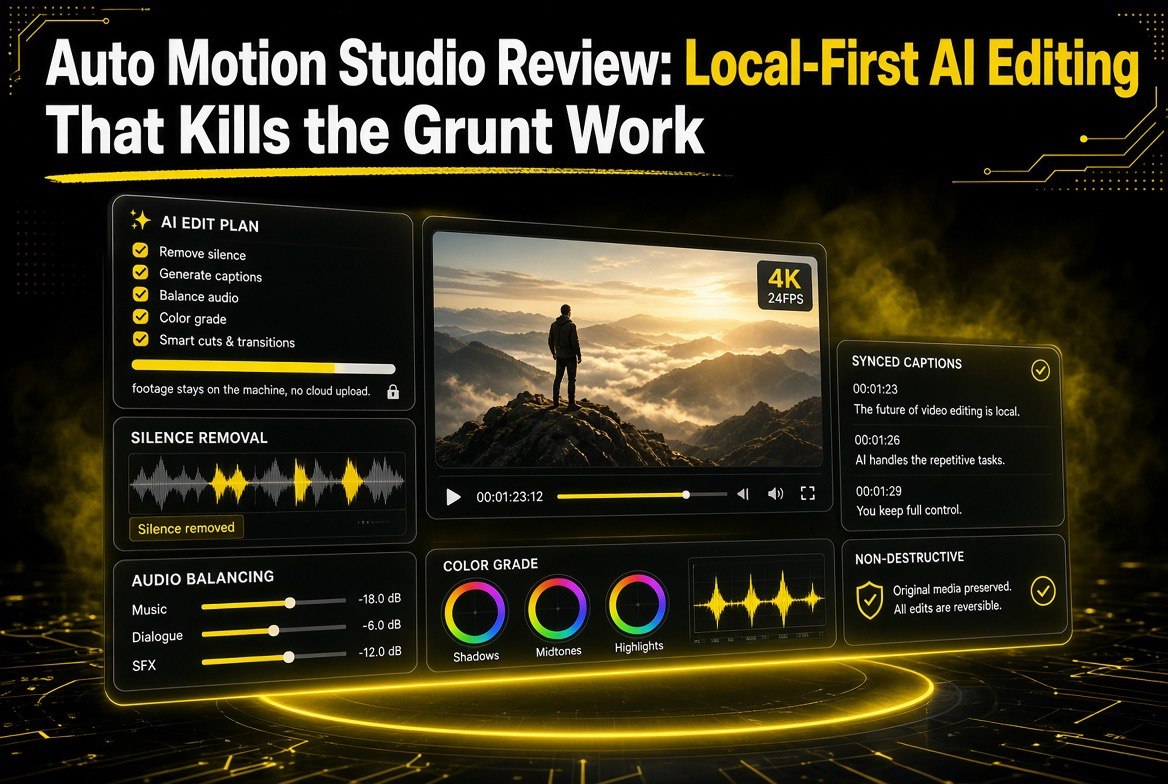
Auto Motion Studio Review: Local-First AI Editing That Kills the Grunt Work
Get The Faceless YouTube Blueprint — Free
The exact AI tool stack and workflow used to build a faceless YouTube channel from zero.
Auto Motion Studio Review: Local-First AI Editing That Kills the Grunt Work
⚡ Expert Summary: Auto Motion Studio is a new local-first video editor for Windows that blends AI-guided automation with a full multi-track timeline you still control. Import a clip, and it can strip silences, sync captions, balance audio, grade color, and even suggest an edit plan — then you review everything non-destructively before export. It runs on your machine, so there’s no mandatory cloud upload for core editing, and it costs a one-time $129 rather than a subscription. Put simply, it promises the speed of AI-assisted editing without forcing you to hand your footage to a cloud service or give up manual control. This review covers what it actually does, where it shines for a solo YouTube creator, and where early-stage buyers should be cautious.
The most common frustration among independent YouTubers in 2026 is not a shortage of ideas, scripts, or footage — it is time. Editing a talking-head video still means hours of trimming silences, punching captions in sync, fixing audio that peaked, and nudging colors, before the actual storytelling even starts. Meanwhile, the AI editing apps that promise to do this for you live in the cloud, which raises two problems for a solo creator: your raw footage leaves your machine, and you lose fine control over the cut. Auto Motion Studio takes a different path. It is a desktop app that puts the AI directly on your timeline, keeps the raw footage local, and treats the AI as an assistant rather than a replacement.
What Is Auto Motion Studio?
Auto Motion Studio is an AI-assisted video editor built specifically for Windows, launched around early September 2026 with a presence on Product Hunt and an official product page at sainoweb.com. It sits squarely in the growing category of “hybrid” editors: tools that automate the tedious parts of post-production but stop well short of taking over. The pitch is direct — your footage gets analyzed, common grunt work gets automated, and you review and adjust each change before you ever export.
That framing matters for the audience this tool targets. Independent YouTubers, short-form creators, educators, and small teams all have the same structural problem: they cannot hire a full-time editor, but they also do not trust a fully automated cloud service with their raw files and their creative judgment. Auto Motion Studio is aimed exactly at that gap, pairing the convenience of automation with the control of a classic multi-track editor. A one-time US$129 (about ¥19,800 including tax) buys the app outright — no subscription follows the purchase, which is a meaningful difference from most modern editing software.
Local Processing as the Core Difference
The single biggest design choice in Auto Motion Studio is that its editing pipeline runs locally on your machine. Core editing tasks — silence detection, caption generation, audio handling, and grading — process on your hardware rather than being shipped to a remote server. For a solo creator worried about unpublished footage, client work, or simply slow uploads over patchy connections, this is a real advantage. It also means the tool keeps working when you are offline, which cloud-dependent editors simply cannot offer. The trade-off is that AI performance depends on your computer’s specs, so this is not a tool for an underpowered laptop doing 4K feature-length edits on the first try.
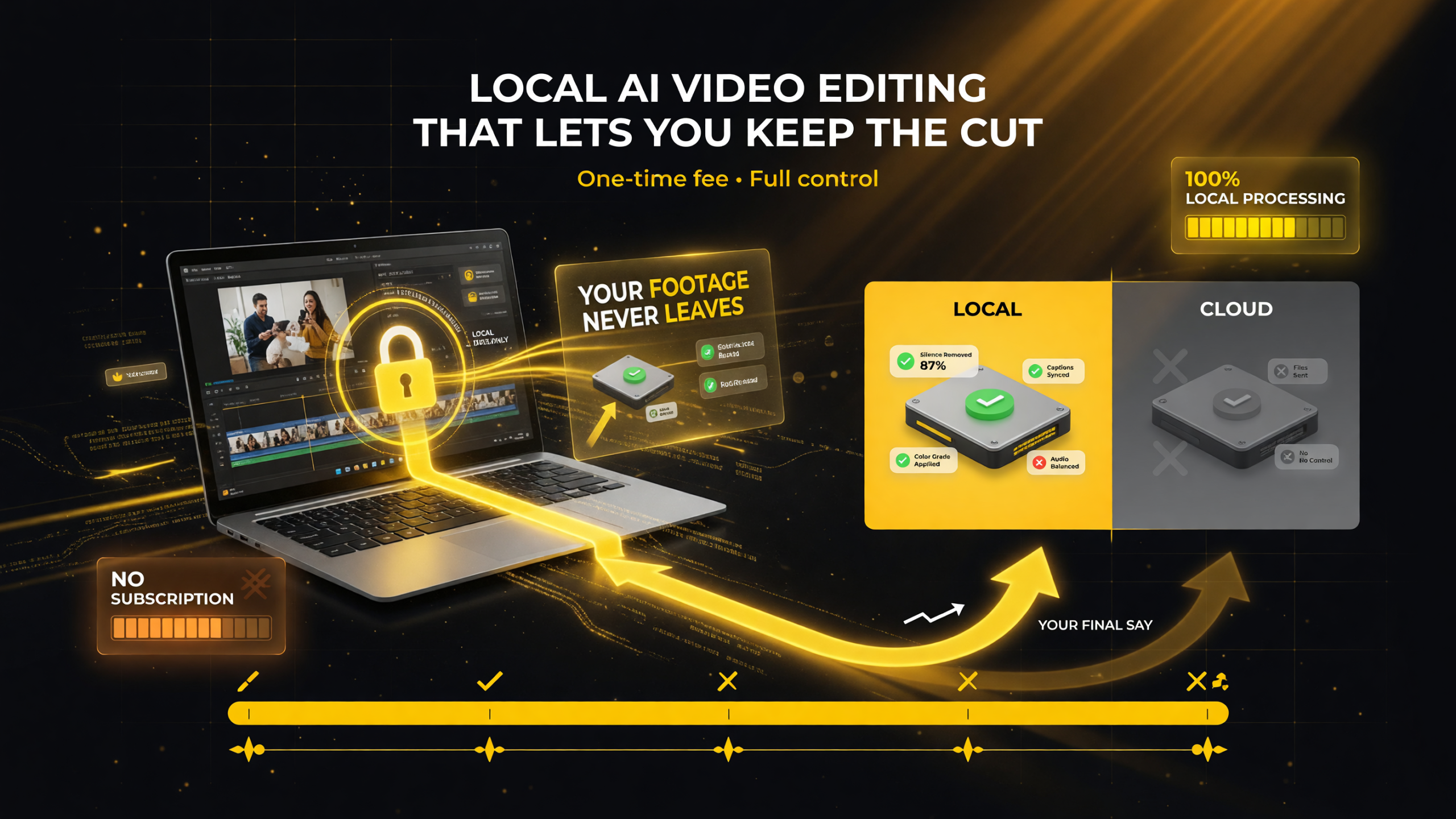
Auto Motion Studio processes core editing on your own machine, so independent creators keep raw footage local and hold onto manual control of the cut — a one-time purchase rather than a constant cloud subscription.
What the AI Automation Does
When you drop footage into Auto Motion Studio and run the AI workflow, the editor analyzes the clip and offers to handle the repetitive jobs most creators dread. The headline features are the ones that eat the most time in a typical talking-head or tutorial edit.
- Silence removal: It detects pauses and filler-heavy gaps in speech and lets you trim them out — usually the first and most tedious pass in a clean edit.
- Synced captions: It generates captions aligned to the audio track, a feature that exploded in importance for YouTube as more viewing happens with the sound off.
- Audio balancing and enhancement: It evens out levels and picks up flat or noisy tracks, cutting the fiddly equalization work.
- Color correction: It applies a consistent grade across clips so footage from different cameras or times of day does not look mismatched.
- Suggested edit plan: Beyond individual fixes, it works out an editing structure you can then accept, tweak, or reject section by section.
| Editing Step | Doing It Manually | With Auto Motion Studio |
|---|---|---|
| Silence removal | Scrub the timeline and cut pauses by hand | AI flags silences; you review and trim with one pass |
| Captions | Watch, type, and re-time every line | Synced captions generated, ready for review |
| Audio balance | Adjust clips and hope they match | Levels evened out across the whole session |
| Color | Grade each clip to keep them consistent | One consistent correction applied across clips |
That table shows the practical value of the automation. Where a manual edit on a ten-minute talking-head video can eat well over an hour just on silences and captions, this workflow condenses those passes into a short review cycle. A creator still watches each suggested cut and each caption line, but verifying a result is dramatically faster than producing it from nothing. Time saved here compounds across a monthly upload schedule, which is exactly why creators with regular output tend to value editors that shorten the mechanical middle of the process.
It is worth noting that the automation is deliberately non-destructive. Nothing is permanently baked into your footage when the AI proposes a change; you can undo, adjust, or reject any suggestion before export. That review step is what separates this from a “one-click render” tool and returns creative control to you. For creators who have been burned by an AI tool that aggressively cut their footage in ways they did not intend, this reassurance is important.
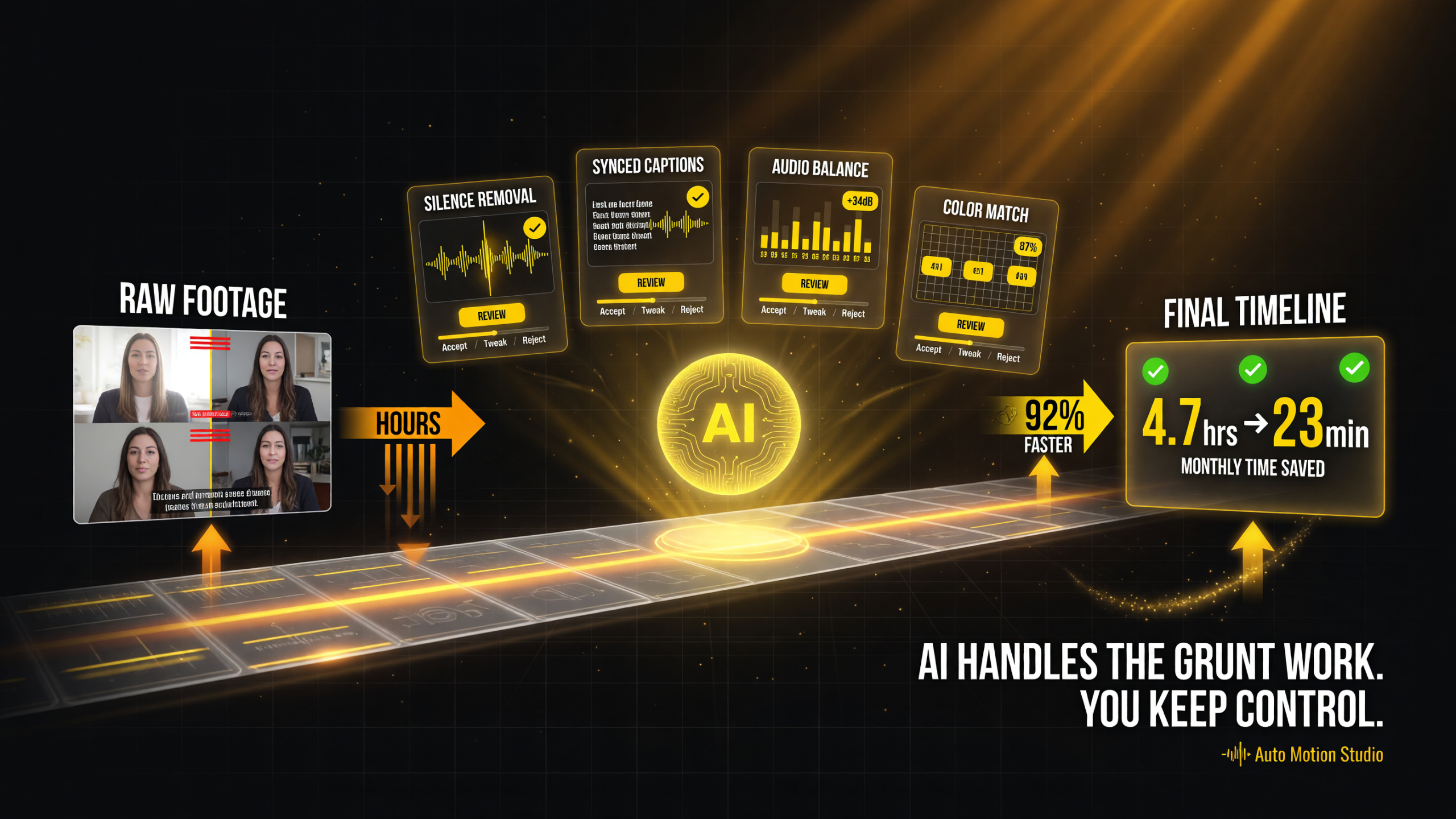
Auto Motion Studio condenses the repetitive passes — silence removal, synced captions, audio balancing, color grading — into a short review cycle where the creator accepts, tweaks, or rejects each AI suggestion before a multi-track timeline stays intact for manual fine-tuning.
Keeping the Manual Timeline Intact
The automation does not carry you out of the editor the way some one-click tools do. Auto Motion Studio keeps a proper multi-track timeline, so after the AI does the heavy lifting you can still fine-tune the cut by hand, layer media, and place adjustments precisely. You are not locked into whatever the automation chose. Reviewed against the tools that only automate, this is a meaningful distinction: it behaves like an editor that happens to have an AI assistant built in, not an AI service wearing an editor costume.
Workspaces Built Around How Creators Actually Work
Beyond the automation, the editor offers several viewing layouts designed for different stages of a project, plus a built-in space for the part of publishing every creator wrestles with — the thumbnail. Layout options include a standard editing view (media, preview, inspector, and timeline), a dual-monitor arrangement with source and program side by side, and a timeline-focused view that enlarges the preview and track area for precise work on long videos. The thumbnail design workspace lets you pick a frame and add text, shapes, and layers without dropping into a separate design app.
That last point is more useful than it sounds. For a solo creator, the post-production chain usually ends not at the final frame but at the title card and thumbnail that determine whether the video gets clicked at all. Keeping that work inside the same tool removes a hand-off and another subscription. It is a small feature, but it reflects a tool designed around the full reality of a solo publishing workflow rather than only the cutting-room floor.
Audio, Music, and the Local Experience
Auto Motion Studio also bundles extras that reduce setup friction. It includes around 100 royalty-free CC0 background music tracks, so a creator has a legal, ready-to-use music library without a separate license or subscription. Narration recording is supported, and the tool provides voice-synthesis options for those building content that needs a voice without booking a booth. All of this points back to the same design goal: cover more of the workflow inside one local tool so a solo operator juggles fewer services, fewer logins, and fewer recurring fees.
The Full Comparison: Auto Motion Studio vs. Cloud AI Editors
To decide whether this makes sense for you, it helps to set it against the two main alternatives: a fully automated cloud AI editor and a manual editor with no AI help. The differences come down to processing location, control, and cost model — three factors that shape daily workflow more than any single feature list.
| Factor | Auto Motion Studio (local-first) | Cloud AI Editor | Manual Editor (no AI) |
|---|---|---|---|
| Where footage is processed | On your own Windows machine | Uploaded to a remote server | On your machine, by hand |
| Automation level | AI assists, you approve each change | High, sometimes one-click finish | None — everything is manual |
| Creative control | Full multi-track timeline remains | Limited to what the tool generates | Total, but slow |
| Cost model | One-time $129, no subscription | Recurring monthly/credit fees | One-time or subscription, no AI |
| Works offline | Yes, for core editing | No — requires an internet connection | Yes, fully |
Stepping back, the real choice is not “automatic versus manual” but “who controls the footage and the cut.” Auto Motion Studio chooses the middle path: automation to remove drudgery, local processing to keep your files and your work private, and a real timeline so you stay in charge. For a creator who has resisted cloud AI editors over privacy or control but does not want to give up the speed, that middle path is the entire appeal. Cloud editors win on convenience when you do not care about upload time or privacy; manual editors win when speed is not a constraint. This tool targets the substantial group in between.
That positioning is worth weighing honestly. The app optimizes for a very specific buyer: a Windows user who is tired of manual editing, unwilling to trust raw footage to the cloud, and comfortable enough on a timeline to still want manual options. If that description does not fit — say you edit entirely on a smartphone, or you have no issue uploading raw files for a fully automated cloud render — then this tool is not aimed at you, and other options will suit you better.
Where to Be Cautious as an Early Adopter
Auto Motion Studio is brand new, and honest buyers should factor that in. As of its early September 2026 launch there is limited independent long-term testing and only a modest set of early reviews behind it, so real-world performance on large, complex projects is not yet well documented. Any AI editor’s weakest points tend to be caption accuracy on heavy accents or technical language, and stability on very long or high-frame-rate timelines — and those claims are simply unproven at this scale.
Two practical notes stand out. First, this is a Windows-only desktop app, so it will not help Mac-first or tablet creators until the developer adds those versions, if it ever does. Second, the app is currently unsigned, which means your operating system may warn you during installation — a normal flag for a new independent developer, but worth knowing before you click through, and worth verifying against the official product page and the developer’s own guidance. There is a 14-day refund window for serious operating defects, which at least hedges the risk of buying into an unfinished tool.
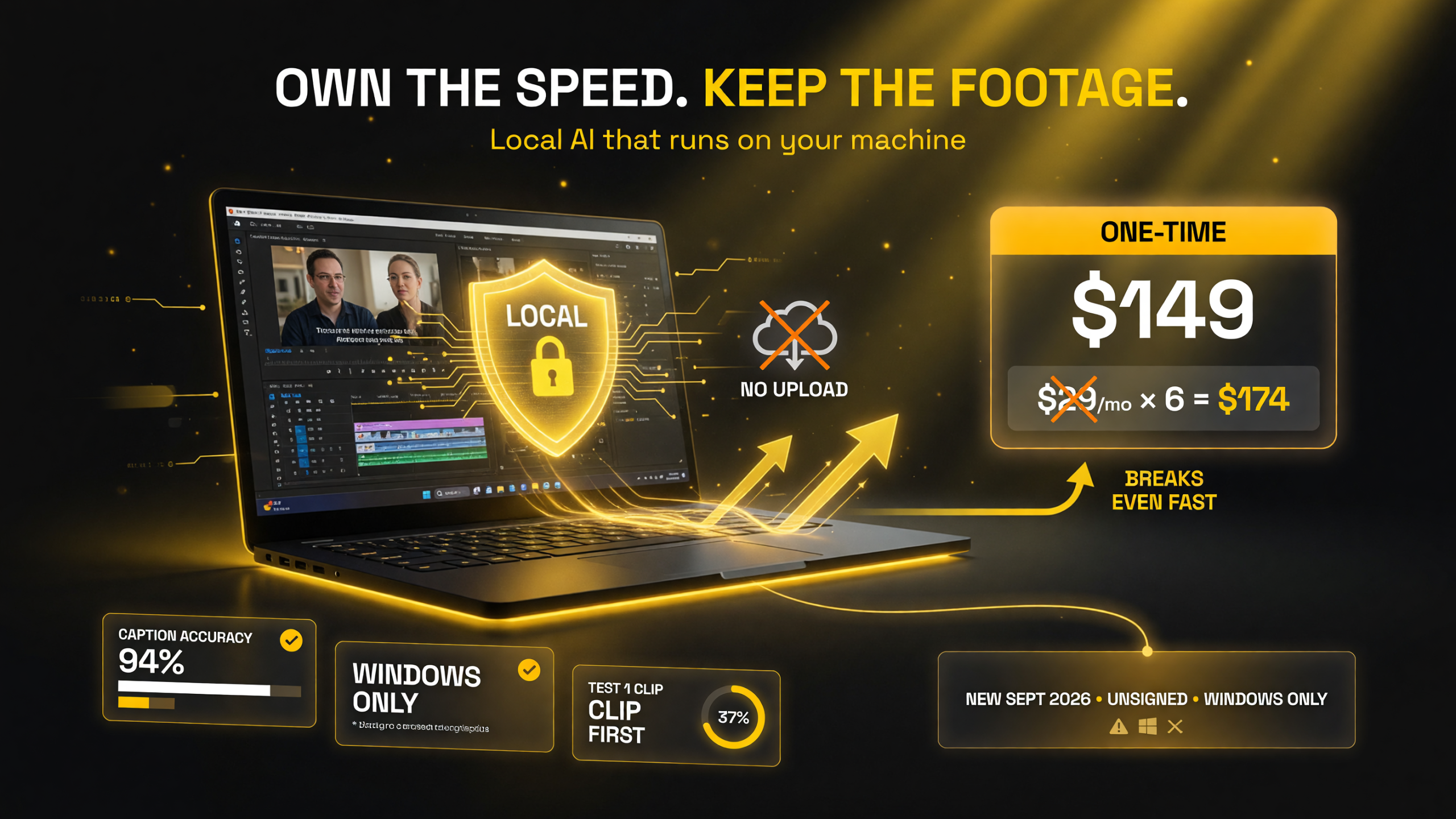
For a solo YouTube creator on Windows who edits regularly, Auto Motion Studio’s one-time price stacks well against even a couple of months of a cloud subscription — and the local, no-upload model is the genuine point of difference. New buyers are advised to test a short finished clip first before committing a full project.
Should a Solo YouTube Creator Buy Auto Motion Studio?
The fair answer is conditioned on your platform and your tolerance for new software. If you edit on Windows, produce regular talking-head or tutorial content, and have spent more hours than you would like on silences, captions, and audio, the $129 one-time price is easy to justify against even a couple of months of a cloud subscription — and the local, no-upload model is a genuine point of difference. The right move for any early adopter is to test it on a short, finished clip first: verify caption accuracy on your own voice, confirm stability on the kind of footage you actually shoot, and only then commit a full project.
The through-line of Auto Motion Studio is a bet that creators want AI speed without surrendering their footage or their edit. As AI editing matures in 2026, that middle ground — automation you approve, running on hardware you control, for a price you own — is likely to resonate with a lot of solo operators. Whether this first release fully delivers on the promise is still being proven, but the direction it points is the one many creators have been waiting for.
Frequently Asked Questions
What is Auto Motion Studio?
Auto Motion Studio is a local-first AI-assisted video editor for Windows. It automates repetitive editing tasks like silence removal, synced captions, audio balancing, and color correction, while keeping a full multi-track timeline the user still controls, and it processes footage locally rather than in the cloud.
How much does Auto Motion Studio cost?
It is a one-time purchase of US$129 (about ¥19,800 including tax) with no subscription. The license covers up to three Windows PCs controlled by one purchaser, with one machine in active use at a time.
Does Auto Motion Studio upload my footage to the cloud?
No, not for core editing. The tool is designed to run its editing pipeline locally on your machine, which keeps raw footage off remote servers and lets the software work offline. Social publishing or external services you choose to connect may involve their own terms.
Is Auto Motion Studio better than a cloud AI editor?
It depends on your priorities. Auto Motion Studio offers local processing, full manual timeline control, and a one-time price. Cloud AI editors are often more convenient and more automated but require uploads, recurring fees, and give you less control over the final cut.
Which creators should use Auto Motion Studio?
Windows-based solo YouTubers, short-form creators, educators, and small teams who want to speed up editing without handing full control or raw footage to a cloud service. It is not for Mac or mobile users, and new users should test it on a short clip before tackling a full project.

About Barak Schurr
Barak Schurr is a serial entrepreneur who built and exited a major ticketing platform before turning his attention to AI and content. He runs three AI-focused research sites and writes about the tools, workflows, and strategies that let solo creators build real channels — without a crew, a studio, or a Hollywood budget.
Email: [email protected]
More AI Video Resources