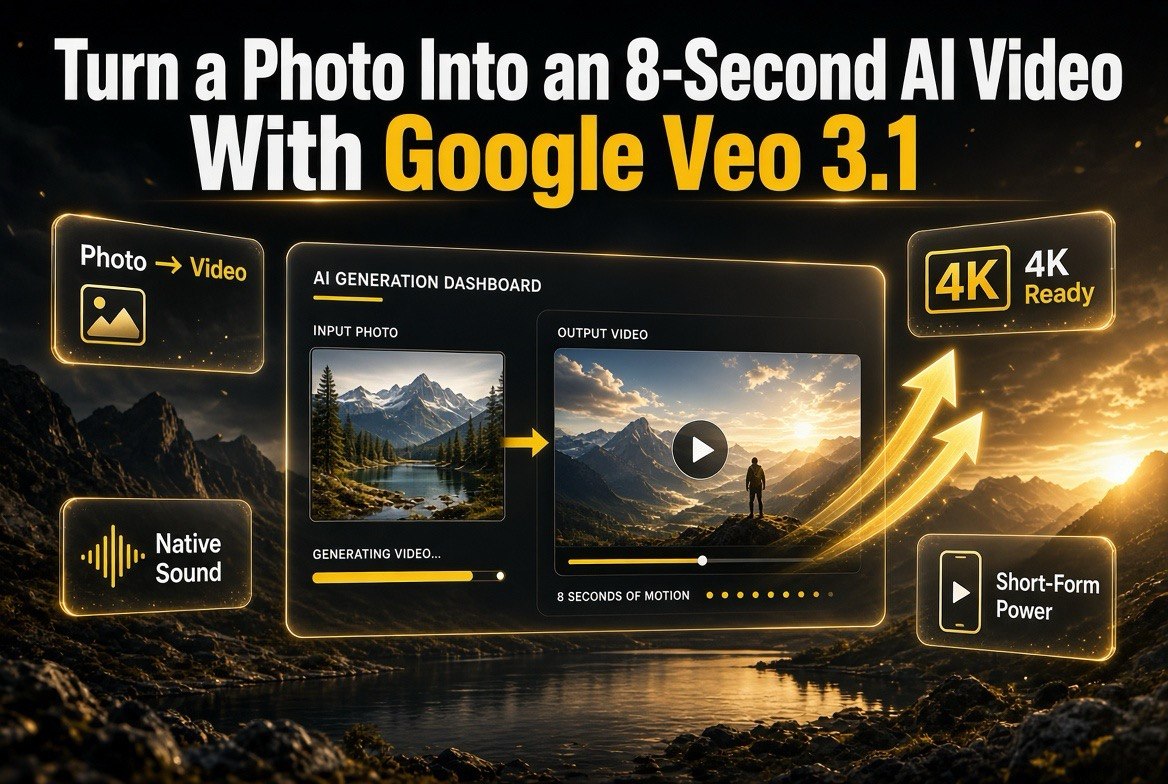
Turn a Photo Into an 8-Second AI Video With Google Veo 3.1
Get The Faceless YouTube Blueprint — Free
The exact AI tool stack and workflow used to build a faceless YouTube channel from zero.
Turn a Photo Into an 8-Second AI Video With Google Veo 3.1
⚡ Expert Summary: Google Veo 3.1 turns a single still image into an 8-second video clip with native, synced audio — dialogue, sound effects, ambience, and music all generated in the same pass as the motion. You can run it today in Google AI Studio by uploading one photo, writing a descriptive prompt, and picking a duration and resolution, with API access for automated workflows. Image-to-video with onboard audio removes the two most tedious parts of short-form production — animating a static shot and matching sound to it. For US creators and small businesses, the practical win is turning product photos, family shots, and real-estate stills into shareable clips without a separate editing or scoring tool. (AIVA yellow/black/white palette)
A static photo is the most underused asset sitting on your phone or hard drive. Google Veo 3.1 now animates a single image into an 8-second AI video and, more importantly, generates the audio to match — dialogue, sound effects, ambience, and music produced together with the motion rather than added afterward. This writer-up walks through what Veo 3.1 actually does with a photo, how to use it in Google AI Studio, what it costs, and where it beats a traditional text-to-video workflow.
What Veo 3.1 Does With a Single Photo
Veo 3.1 is Google DeepMind’s flagship video model, and its image-to-video mode is the headline capability for 2026. You upload one or more reference images — or a first-frame/last-frame pair — add a text prompt, and the model generates motion that stays consistent with the character, style, and composition of your source photo. Reference-guided generation is what separates
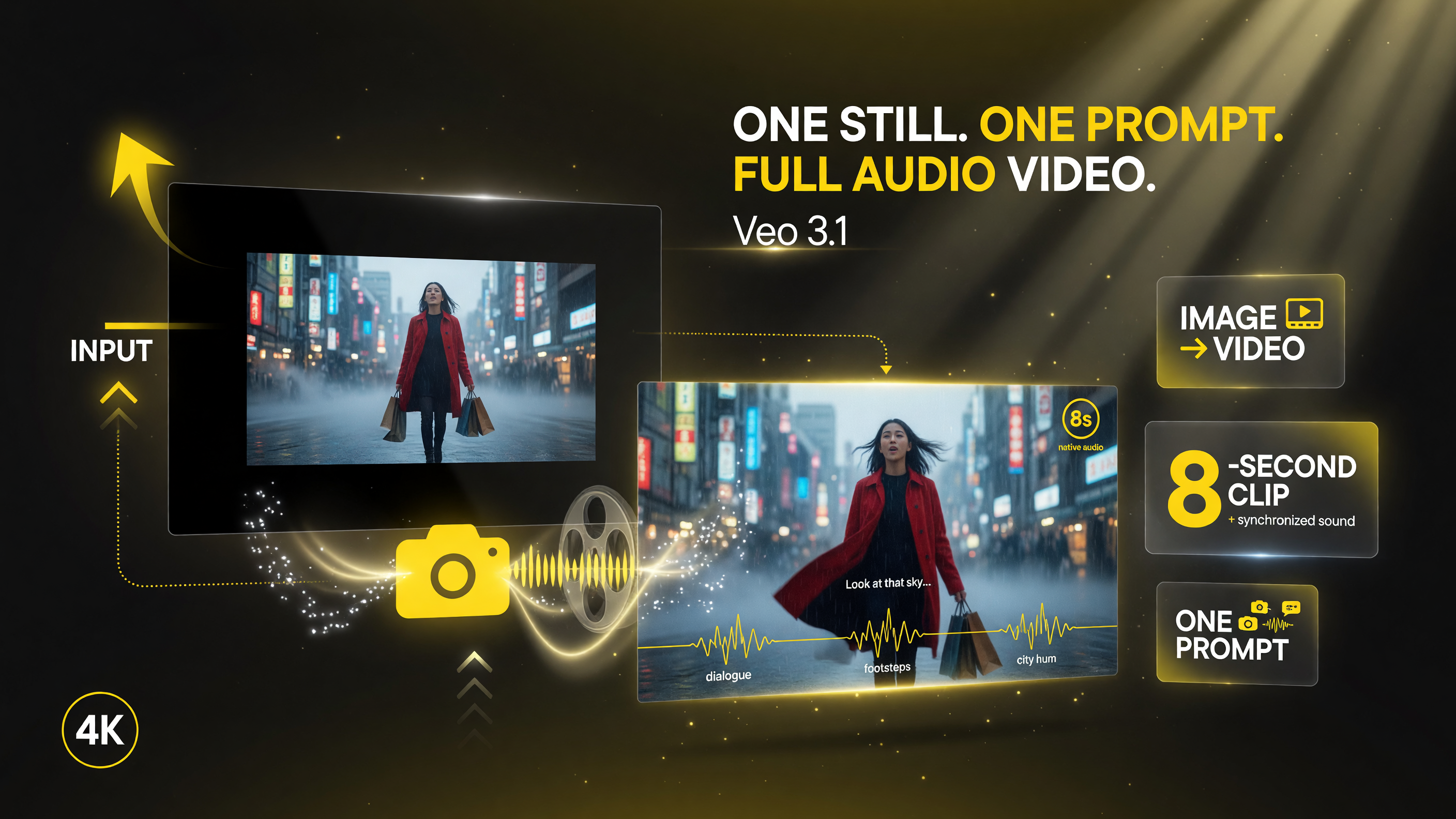
Veo 3.1 photo-to-video workflow: one prompt animates a still image into an 8-second clip with synchronized sound in a single pass.
this from older tools where the output drifted away from your original image.
Clips run from 4 to 8 seconds depending on the variant and settings, with 8 seconds the common maximum for full-quality generations. Resolution options scale from 720p up to 1080p and 4K on higher tiers, typically at 24 frames per second. That short-form length is not a limitation — it is the sweet spot for feed content, product highlights, social ads, and the kind of looping b-roll that performs well on US platforms like Instagram Reels, TikTok, and YouTube Shorts.
Native Audio Changes the Production Math
The reason Veo 3.1 matters more than a typical photo-to-video tool is native synchronized audio. Instead of generating silent motion and layering a music bed later, the model produces dialogue, sound effects, ambience, and music in the same pass as the visuals. A clip of rain on a window comes with rain sound; a person walking through a forest comes with wind and birdsong; a product shot can include a subtle whoosh or score timed to the motion.
For a solo creator or a small business owner in the United States, that removes two separate steps from the workflow. You would otherwise render the video, export it, open an editor, find a track or foley, and sync it by hand — across dozens or hundreds of clips. Veo 3.1 compresses that into a single generation.
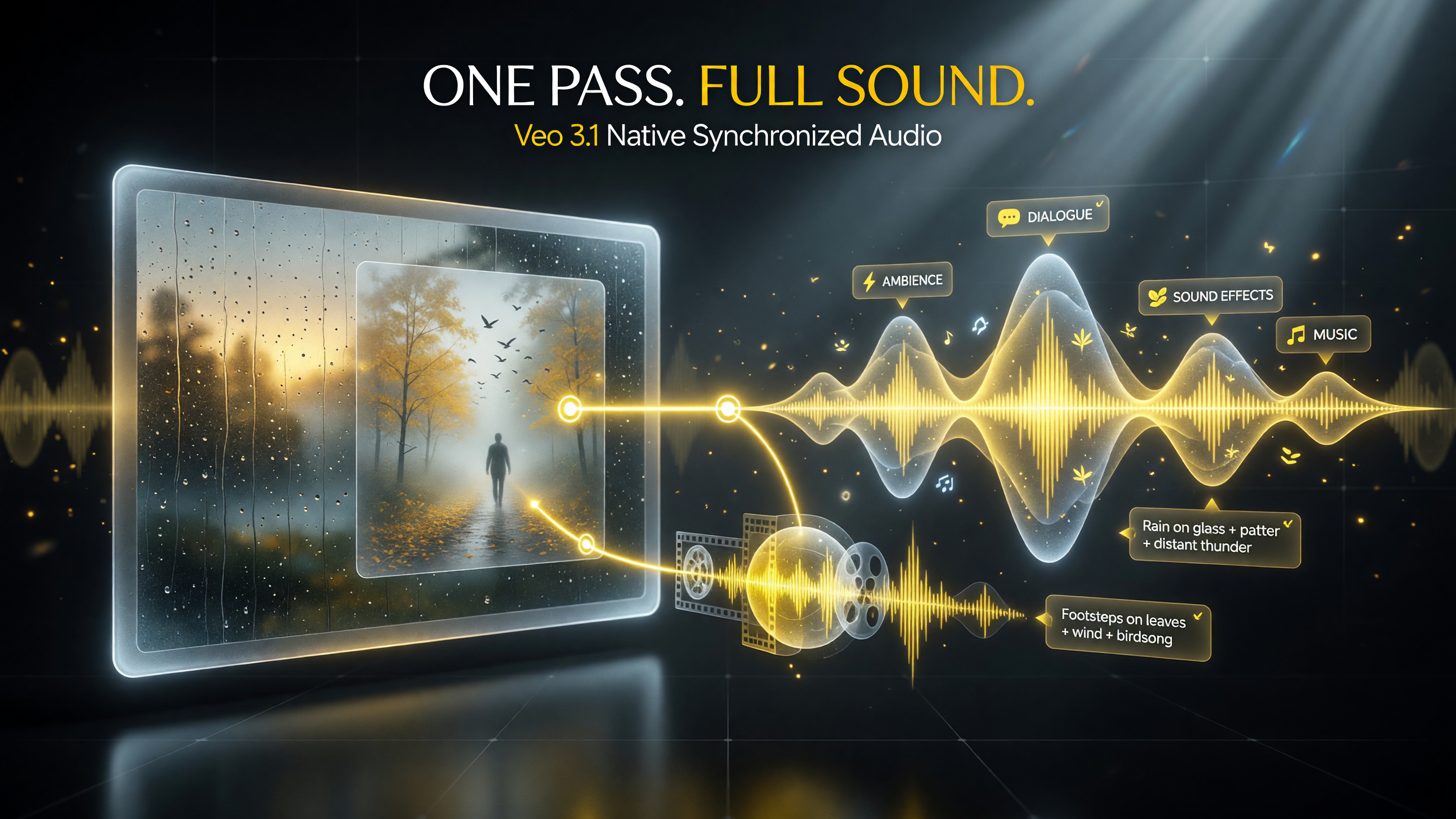
Veo 3.1 native audio: dialogue, ambience, sound effects, and music generated in the same pass as the motion – no separate scoring step.
Dialogue support with lip-syncing is available in the fuller variants, which matters for short narrated ads and persona-based content, not just ambient b-roll.
How to Turn a Photo Into a Video in Google AI Studio
Google AI Studio is the fastest way for an individual creator or a small team to test this without writing code. The steps are short and the generation feedback loop is quick.
- Open Veo 3.1 in AI Studio. Navigate to aistudio.google.com/models/veo-3 and select the Veo 3.1 variant you want (Fast for speed, Lite for cost, or the full quality model).
- Upload your photo. Add a single still image or a first/last-frame pair as the reference that Veo animates.
- Write a descriptive prompt. Be specific about motion and audio, for example: “animate this photo of a person walking through a forest with gentle wind and birdsong.”
- Set duration and resolution. Choose a clip length (4 to 8 seconds) and resolution, and confirm native audio is enabled.
- Generate and review. Run the generation, inspect the motion and sound, then iterate on the prompt for a second pass if needed.
For developers, the same capability is exposed through the Gemini API under models like veo-3.1-generate-preview, where you send an image plus a text prompt and get video-and-audio back programmatically. That is the path for businesses that want to automate photo-to-video at scale rather than generating one clip at a time in the browser.
What It Costs
Pricing depends on the access method, the variant, the resolution, the duration, and whether audio is included. On the API side, the per-video figures break down by tier: Veo 3.1 Lite runs around $0.05 per video, the Fast variant around $0.15, and the standard quality tier around $0.40 per video, with per-second rates ranging from about $0.15 to $0.40 or more depending on configuration. Lite is the practical choice for high-volume work where cost per clip matters more than maximum polish.
| Veo 3.1 Variant | Per-Video API Cost | Best For |
|---|---|---|
| Veo 3.1 Lite | ~$0.05 | High-volume b-roll and short feed clips |
| Veo 3.1 Fast | ~$0.15 | Balance of speed and quality for daily content |
| Veo 3.1 Quality | ~$0.40 | Hero shots and polished deliverables |
At the API tier, Veo 3.1 Lite is the value pick for high-volume work, Fast balances speed and quality, and the Quality tier is for polished hero clips.
On the consumer side, Google AI subscription plans gate the higher tiers. Google AI Plus (roughly $4.99 to $7.99 a month) provides access to the Fast variant, Google AI Pro (around $19.99 a month) adds more limits, credits, and trials, and the Ultra tier (from about $99 a month) targets premium and full access. Some low-volume AI Studio use and trial credits are effectively free, so you can validate the workflow before paying. For exact current rates and quotas, check the Gemini API pricing page or your Google AI Studio dashboard.
The cost math is friendlier than it looks when you factor in what it replaces.
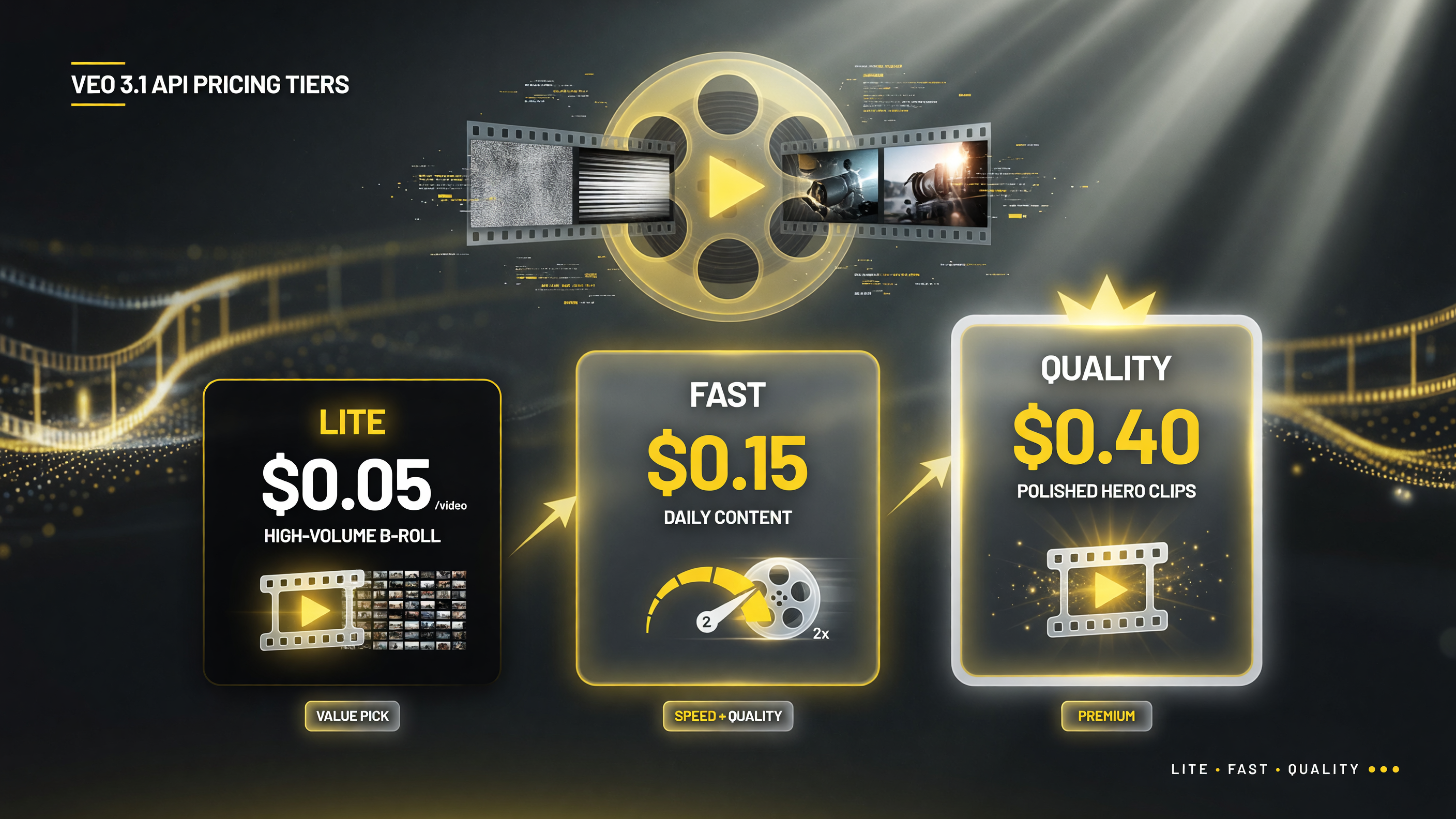
Veo 3.1 API per-video pricing: Lite at $0.05 for high-volume b-roll, Fast at $0.15 for daily content, and Quality at $0.40 for polished hero clips.
A single Veo 3.1 generation with native audio can stand in for a render plus a licensed music track plus manual syncing. At the Lite price point, photo-to-video with sound becomes cheap enough to use as a b-roll generator rather than a one-off novelty.
Veo 3.1 vs. Traditional Text-to-Video
It is worth being precise about the difference between starting from a photo and starting from a prompt. Text-to-video gives you freedom but also drift: you describe a scene and the model invents everything, which can mean losing the exact product, the exact face, or the exact location you wanted. Image-to-video in Veo 3.1 constrains the output to your source, which is why it is the better fit when the asset already exists and the goal is to bring it to life.
| Consideration | Photo-to-Video (Veo 3.1) | Text-to-Video |
|---|---|---|
| Subject fidelity | Keeps your exact product, face, or location | Model invents the scene; drift risk |
| Business fit | E-commerce, real estate, event, brand stills | New scenes with no existing asset |
| Editing steps | One generation, clip plus synced audio | May need separate audio scoring |
| Output length | 4 to 8 seconds, short-form focused | Varies by model and plan |
Photo-to-video keeps the subject on-brand and on-message, while text-to-video gives more freedom but more drift — pick based on whether the asset already exists.
Use cases where that constraint pays off in the United States include e-commerce product photography turned into orbiting or panning clips, real-estate stills animated into cinematic walkthrough teasers, event photos given breathing motion for social recap posts, and personal or brand imagery converted to engaging feed content. In each case, the reference image keeps the output on-brand and on-subject in a way a blank-prompt generation cannot guarantee.
Who Should Use Veo 3.1 Photo-to-Video
Three groups get the most from this capability. Independent creators and US social media managers get short, native-audio clips without a separate editor or scoring tool. Small business owners with existing product or location photography get a low-effort way to turn stills into ad and feed content, using the cheaper Lite or Fast tiers to keep per-post cost minimal. And developers building automated content pipelines get a clean API path to turn a library of stills into a stream of branded video clips.
The limitation to note is length. Veo 3.1 produces short clips, so it does not replace a full video editor for long-form narrative. Its job is efficient, consistent short-form production with sound, and it does that better than pairing a separate photo-motion tool with a separate audio tool.
A practical first project is a single product photo or location still: animate a slow pan or a subtle ambient movement, enable native audio, and render an 8-second clip to test the model’s consistency before you build a larger workflow around it. Small, repeated wins with one image are the fastest way to learn which prompts hold a subject and which let the motion drift.
Sources: Google AI Studio, Veo 3 model page (aistudio.google.com/models/veo-3); Google DeepMind, Veo (deepmind.google/models/veo); Google Gemini API documentation, Veo 3.1 generation and pricing (ai.google.dev/gemini-api/docs/models/veo-3.1-generate-preview; ai.google.dev/gemini-api/docs/pricing); Google blog, Veo updates and Flow (blog.google). Feature and pricing details as published by Google for Veo 3.1 in 2026.
Frequently Asked Questions
Can Veo 3.1 turn a single photo into a video? Yes. Veo 3.1’s image-to-video mode animates one still image, or a first/last-frame pair, into a 4 to 8 second clip while keeping the character, style, and composition consistent with your source photo.
Does Veo 3.1 generate audio with the video? Yes. Native synchronized audio produces dialogue, sound effects, ambience, and music in the same pass as the motion, so you do not need to add or sync sound afterward.
How long are Veo 3.1 videos from a photo? Clips run from about 4 to 8 seconds depending on the variant and settings, with 8 seconds a common maximum and higher resolutions typically tied to the more capable tiers.
How much does Veo 3.1 cost? On the API, Veo 3.1 Lite is around $0.05 per video, Fast around $0.15, and standard quality around $0.40, with per-second rates from about $0.15 to $0.40 depending on configuration. Google AI plans start around $4.99 to $7.99 a month for the Fast tier, and some low-volume AI Studio use is effectively free.
Where can I use Veo 3.1 for photo-to-video? Google AI Studio is the fastest option for individuals and small teams. Developers can use the Gemini API via models like veo-3.1-generate-preview for automated workflows, and the model is also available in Google Flow and through third-party platforms.
About Barak Schurr
Barak Schurr is a serial entrepreneur who built and exited a major ticketing platform before turning his attention to AI and content. He runs three AI-focused research sites and writes about the tools, workflows, and strategies that let solo creators build real channels — without a crew, a studio, or a Hollywood budget. Contact: [email protected]
More AI Video Resources