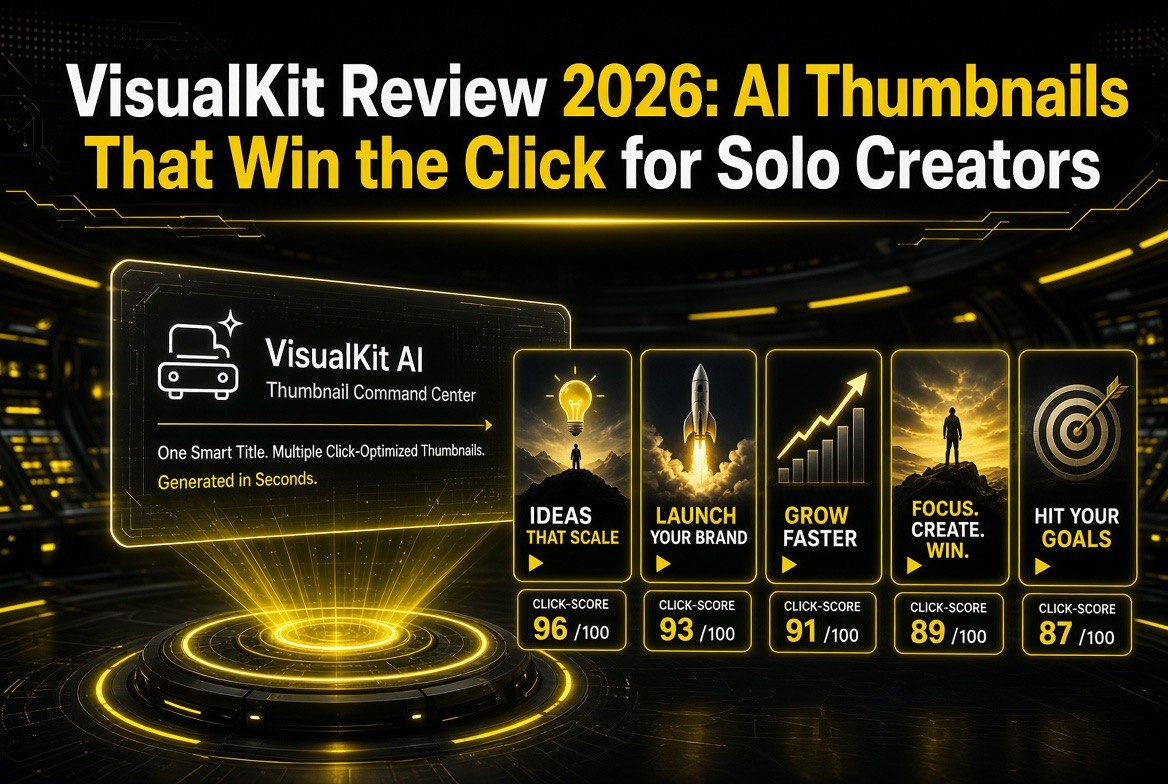
VisualKit Review 2026: AI Thumbnails That Win the Click for Solo Creators
Get The Faceless YouTube Blueprint — Free
The exact AI tool stack and workflow used to build a faceless YouTube channel from zero.
VisualKit Review 2026: AI Thumbnails That Win the Click for Solo Creators
⚡ Expert Summary: VisualKit is an AI thumbnail and visual-asset studio built specifically for video creators — you describe a video idea or paste your title, and it turns out multiple click-optimized 1280×720 thumbnails in under ~15 seconds. Unlike text-to-video generators, it doesn’t make clips; it makes the static assets that decide whether anyone clicks the clip. It analyzes composition, text hierarchy, and niche style automatically, gives each result a click-score out of 100, and lets you refine with plain-language commands like “make the text bigger” or “use my face.” Plans run $20/mo (Starter), $40/mo (Pro), and $80/mo (Ultra), all credit-based with no watermarks and flexible cancels.
Every video creator hits the same wall: the upload burns hours, but the thumbnail is the one screen most viewers ever judge. Test a title against the algorithm all you want — if the thumbnail doesn’t earn the tap, the metrics never get a chance to move. VisualKit is built for that exact problem: an AI assistant purpose-made to produce thumbnails and channel assets that get clicked, without hiring a designer or fighting Photoshop layers.
It’s not another text-to-video toy. VisualKit sits in a different lane — the “make me an asset that drives views” lane — and that positioning is exactly why it’s worth a dedicated look for solo creators who want a repeatable, fast thumbnail system. Here’s what it actually does, what it costs, and where it fits (and doesn’t) in a working channel.
What VisualKit Actually Makes
Strip away the AI wrapper and VisualKit is a thumbnail and visual-identity generator. Feed it a few inputs and it returns finished, export-ready assets rather than a raw generation you have to polish by hand.
Prompt-to-thumbnail from a title or idea
You can paste your video title, give a one-line description of the content, or describe the visual you picture. VisualKit handles composition, headline placement, subject emphasis, and a style that suits your niche — gaming, vlogs, podcasts, finance, tech, faceless channels, Shorts. You get a set of options to choose from instead of one locked result.
Reference and personalization tools
Upload your own photo or face so your thumbnail matches your on-camera look across uploads — the consistency viewers and the algorithm both recognize. You can also feed it a screenshot or a YouTube URL as a style or layout reference, or remix an existing thumbnail you already like. That reference system is what keeps a channel visually coherent instead of a random pile of AI images.
Plain-language refinement
You don’t prompt like a coder. Tell it “make the text larger,” “remove the background,” “put my face on the right,” or “make it less cluttered,” and it edits the asset accordingly. For a solo creator who isn’t a designer, that conversational editing loop is the differencer between “close enough” and “actually good.”
Built-in click-score analysis
Before you ever upload, VisualKit scores each thumbnail out of 100 and offers suggestions to push it higher — bigger contrast, clearer focal point, tighter text. It’s a second opinion on the single highest-leverage frame you control, applied before your video is even public.
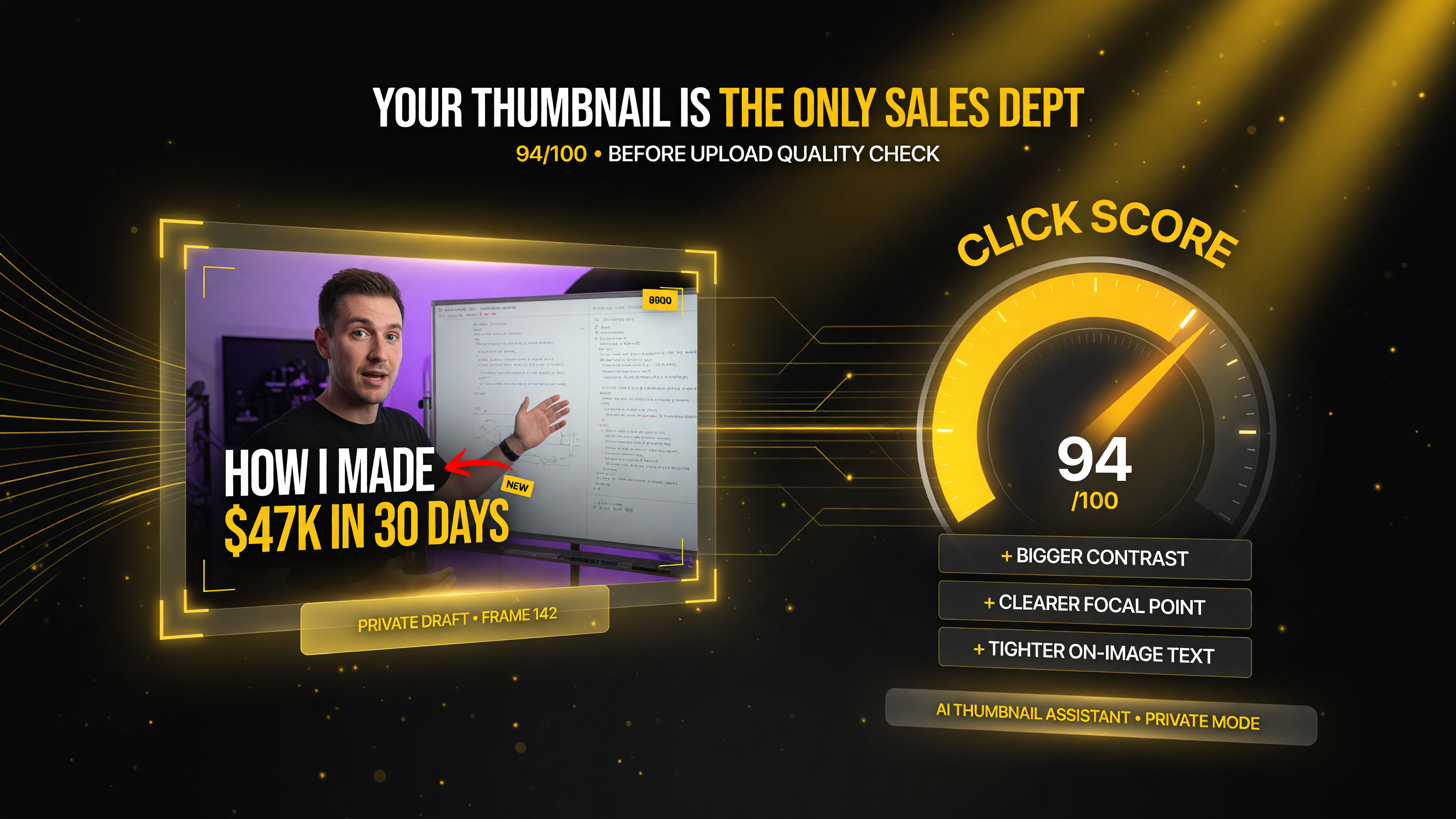
Before an upload ever goes public, VisualKit scores the frame out of 100 and flags what to push higher — bigger contrast, a clearer focal point, tighter on-image text — a second opinion on the single highest-leverage frame a solo creator controls.
Why This Matters More Than Fans Think
Thumbnails get dismissed as cosmetic, but the data on click-through behavior doesn’t support that. On a platform where results on a saturated topic can vary widely, the thumbnail is frequently the deciding factor between a video that gets served and one that gets skipped. When you’re a solo creator without a marketing department, that frame is your entire sales pitch — the only chance to convert a browse into a play.
Where VisualKit earns its keep is speed and volume. A creator posting several times a week needs a consistent pipeline of thumbnails, and doing that by hand or by hiring out is slow and expensive. With an AI assistant turning out options in seconds and letting you iterate in natural language, the bottleneck moves from “I need to find someone to make a thumbnail” to “which of these three do I upload.” For a solo operator whose time is the scarcest resource, that’s a real workflow shift, not a gimmick.
VisualKit vs. DIY Design vs. a Human Designer
Solo creators realistically choose between doing thumbnails in Canva or Photoshop, hiring a designer, or using an AI assistant like VisualKit. Here’s the honest comparison.
| Factor | VisualKit (AI assistant) | DIY in Canva/Photoshop | Human designer |
|---|---|---|---|
| Speed per thumbnail | Seconds, multiple options | 20–60+ min by hand | Turnaround days, back-and-forth |
| Design skill needed | None — plain-language edits | Moderate — layout & tools | Handled for you |
| Click optimization feedback | Built-in score out of 100 | Your own guess | Designer’s judgment |
| Cost | Flat $20–$80/mo credits | Tool subscriptions add up | High per-asset rate |
| Consistency across channel | Reference tool keeps it cohesive | Depends on your discipline | Good if same designer |
Read that speed row carefully. DIY gives you total control but taxes your time every upload, and for a solo creator time is the constraint that actually limits output. A human designer gives polish but adds latency and cost that doesn’t scale to weekly posting. VisualKit sits on the speed end: instant options, natural-language refinement, and a built-in second opinion — a fit specifically for the high-frequency solo workflow, with the tradeoff that you’re working within its design language rather than a fully bespoke human eye.
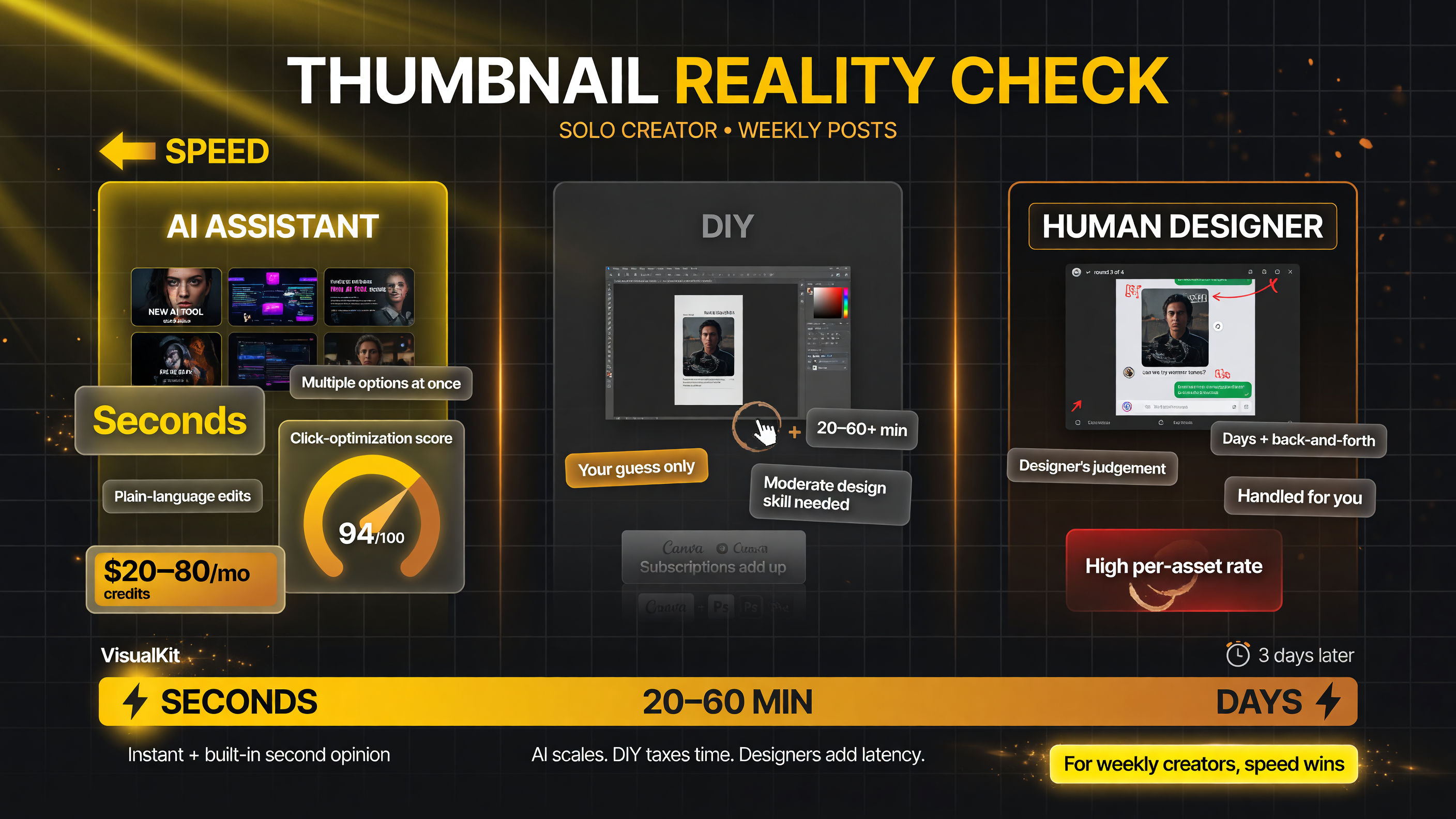
For a solo creator posting weekly, the bottleneck is time: the tool answers in seconds with a built-in click score, DIY eats 20–60+ minutes per upload, and a human designer adds days of back-and-forth at a high per-asset rate.
How to Set Up a Thumbnail Workflow
Getting real value out of VisualKit is less about the tool and more about wiring it into a repeatable routine. A practical setup looks like this.
- Upload your reference assets once. Put your face photo and a couple of your best performing thumbnails into the system so every generation matches your established look.
- Make the title the input, not a wish. Paste the actual video title and let the tool build around the words viewers will read. That keeps the thumbnail and the headline working together instead of fighting.
- Generate in batches before you film or edit. Knock out thumbnail options for your next several uploads in one sitting so you’re never blocked on release day waiting on an asset.
- Use the click-score the way you’d use a test. When two options score close, run the one you feel best about and A/B later with the runner-up rather than agonizing.
- Keep a swipe file. When a thumbnail underperforms, feed it back as a reference and ask what would read stronger — build the lesson into the next batch.
The creators who treat this as an assembly line — reference in, title in, options out, pick, upload — get compounding consistency. The ones who treat it as a one-off magic button get the same mixed results as any tool used once.
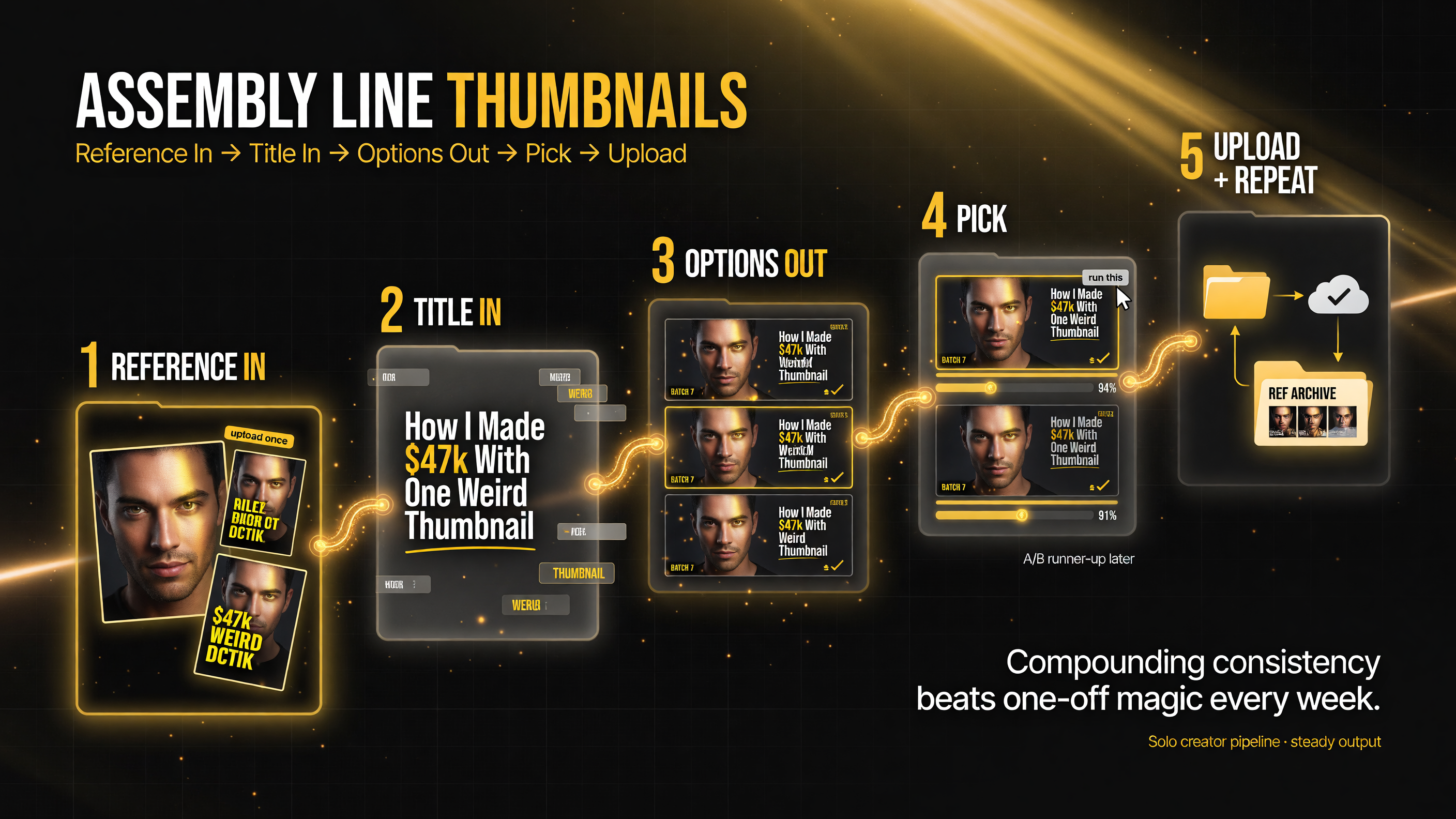
Creators who treat thumbnails as an assembly line — reference in, title in, options out, pick, upload — get compounding consistency; one-off magic-button use gets the same mixed results as any tool used without a system.
Pricing: Flat Credits, No Watermarks
VisualKit’s pricing is built around monthly credit allowances rather than per-download locks. All plans include niche templates, the reference tools, and no watermarks, with yearly billing saving roughly 25%.
| Plan | Monthly credit | Who it fits |
|---|---|---|
| Starter | $20/mo — ~500 credits | Consistent monthly posters |
| Pro (most popular) | $40/mo — ~1,500 credits | Posting several times a week |
| Ultra | $80/mo — ~4,000 credits | High-volume creators and teams |
Because credits reset monthly and usage depends on generation settings and quality, the right tier is really a function of how many assets you ship per month. For a creator posting once or twice a week and iterating on a few options per upload, the Starter or Pro tier comfortably covers the pipeline; high-volume multi-channel operators are the ones who outgrow into Ultra. Confirm current credit math on the pricing page, since allowances and offers can shift.
Who VisualKit Is Really For (and Who It Isn’t)
The tool makes the most sense for the creator whose upload cadence is steady and whose thumbnails currently arrive late, uneven, or not at all because design isn’t the skill they want to spend time on. That’s the vlogger, the podcaster turning episodes into clips, the faceless channel operator who posts once or twice a week across a niche or two, and the small team that needs channel-wide visual consistency without a designer hire. For them, a reference-anchored assistant that emits options in seconds and scores them before upload is a genuine force multiplier on their scarcest resource — time.
It’s less obviously right for the creator whose entire brand is a highly art-directed visual identity and who deliberately avoids algorithm-typical thumbnails, or for someone posting so rarely that even twenty dollars a month for unused credits is waste. And it’s not the tool for anyone hoping it will also edit their footage. Match it to the job: if the job is “high-volume, consistent, fast-click thumbnails,” it’s a strong fit; if the job is “bespoke art direction every upload,” a human remains the better call. Being clear about which side you’re on is what separates a useful subscription from a wasted one.
Where VisualKit Falls Short
Be straight about the limits. VisualKit is a static-asset tool, not a video editor or text-to-video generator — if you came looking for a tool that makes clips, this isn’t it, and no amount of thumbnail polish fixes a video the viewer never gets served. You’re also working within its design language rather than a fully bespoke human concept, so for a highly art-directed brand a designer still wins on originality. Heavy voice-to-design and extremely specific custom layouts are where the assistant model can hit its ceiling versus a human who knows your brand cold.
There’s also the platform-reliance caveat that applies to every AI asset tool: thumbnail “rules” shift as algorithms change, so a tool optimized for today’s click patterns needs to keep pace. And as with any cloud service, your output library lives with the vendor — worth keeping finished exports backed up locally.
Should a Solo Creator Use VisualKit?
The honest decision framework:
- Are you posting on a schedule where thumbnails routinely bottleneck you? If release day keeps slipping because you don’t have an asset, an instant-generation tool removes that blocker outright.
- Do you need consistency across uploads but lack design time? The reference system gives you a coherent channel look without a designer.
- Do you want a built-in check before you upload? A click-score out of 100 is a fast, repeatable second opinion.
- Do you rely on highly art-directed, bespoke visuals as your brand moat? A human designer still beats an AI assistant on originality.
For the solo creator whose real constraint is time and whose biggest single lever per upload is the click, VisualKit is a strong, affordable system — it cuts the thumbnail bottleneck to seconds and injects a repeatable quality check into every release. It won’t make your video better, but it makes sure the people scrolling actually stop to give it a chance.
FAQ
What is VisualKit?
VisualKit is an AI thumbnail and visual-asset generator for video creators. You describe a video or paste a title, and it produces click-optimized 1280×720 thumbnails and related assets with plain-language refinement and built-in click-score analysis.
Is VisualKit an AI video generator?
No. VisualKit makes static promotional assets — thumbnails, social posts, logos, app icons — for video content. It does not generate or edit video footage; it’s designed to maximize clicks and views on videos you’ve made.
How much does VisualKit cost?
Flat monthly plans: Starter ~$20/mo (~500 credits), Pro ~$40/mo (~1,500 credits), and Ultra ~$80/mo (~4,000 credits), with yearly billing saving roughly 25%. Credits reset monthly and all plans are watermark-free.
Does VisualKit work for faceless channels?
Yes. It supports niche-specific templates including faceless content and Shorts, and you don’t need to upload a face — you can build thumbnails around text, graphics, and subject imagery.
Do I need design skills to use VisualKit?
No. Generations happen from titles or descriptions, and edits are done with plain-language requests like “make the text bigger” or “use my face,” so no Photoshop or layout experience is required.

Written by
Barak Schurr
Barak Schurr is a serial entrepreneur who built and exited a major ticketing platform before turning his attention to AI and content. He runs three AI-focused research sites and writes about the tools, workflows, and strategies that let solo creators build real channels — without a crew, a studio, or a Hollywood budget. [email protected]
More AI Video Resources