AVCLabs vs Topaz Video AI 2026: Which Upscaling Tool Wins?
Get The Faceless YouTube Blueprint — Free
The exact AI tool stack and workflow used to build a faceless YouTube channel from zero.
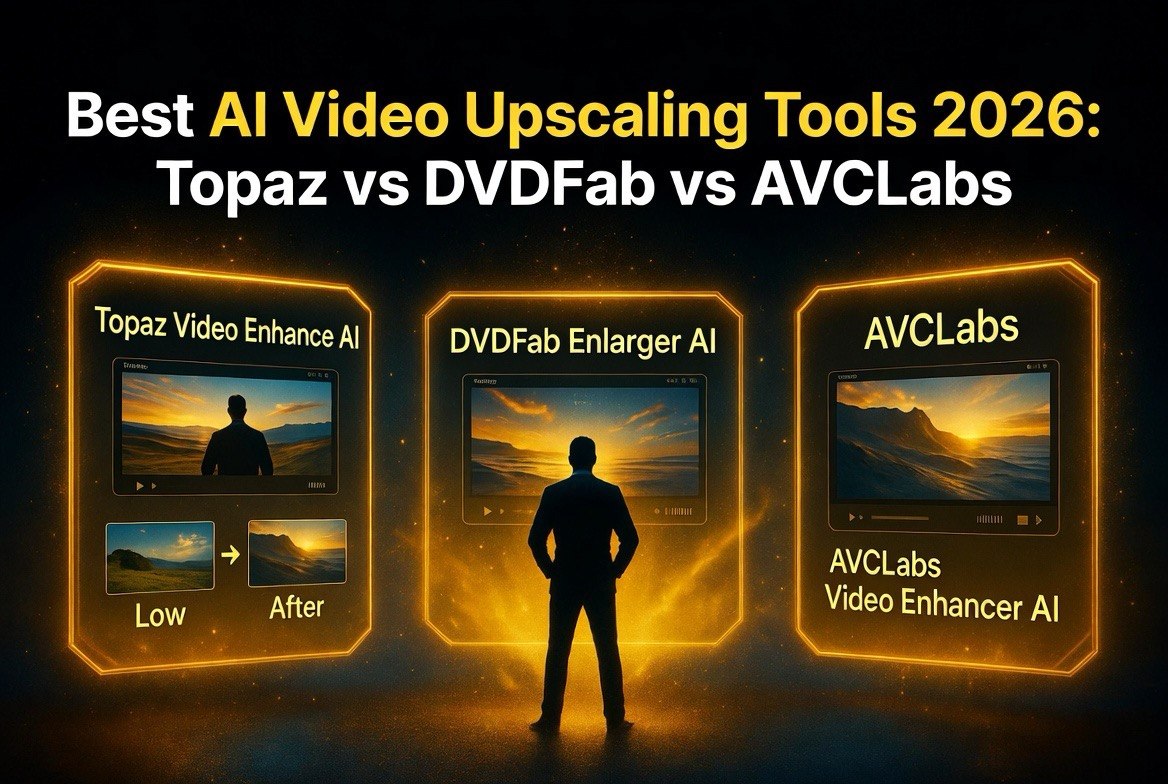
Best AI Video Upscaling Tools in 2026: Topaz vs. DVDFab vs. AVCLabs Tested
If you create video content for a living, you’ve hit the quality wall. Maybe you’re working with archival footage shot on a smartphone from 2018. Maybe your AI-generated clips from tools like Sora, Runway, or Kling come out at 720p and look soft. Or maybe you’re trying to repurpose old YouTube videos that need to look modern.
Whatever the case, the problem is the same: your footage doesn’t look sharp enough for 2026 standards. And with viewers expecting crisp 4K on every platform, blurry video kills engagement.
AI video upscaling has matured fast. The tools available today can take 480p footage and output 4K that looks natural — no weird artifacts, no plastic-looking faces, no jittery motion. But not all tools are created equal.
I’ve spent the last three weeks testing the four most popular AI video upscalers side by side. I ran the same 12 clips through every tool — old home video footage, compressed YouTube downloads, AI-generated clips, and standard 1080p camera footage — and graded the results on sharpness, motion handling, artifact reduction, and processing speed.
Here’s what I found, which tool you should actually buy, and how to avoid wasting hours on bad settings.
How AI Video Upscaling Actually Works
Before we compare tools, it helps to understand what’s happening under the hood. Traditional upscaling — the kind your TV or editing software does — uses basic interpolation. It guesses what pixels go between existing pixels by averaging colors. The result is bigger but not sharper.
AI upscaling is fundamentally different. These tools use deep learning models trained on millions of image and video pairs. The model has learned what 4K detail should look like when applied to a blurry input. It doesn’t just stretch pixels — it generates new detail that wasn’t there before.
Modern AI upscalers do three things at once: they increase resolution, reduce compression artifacts, and improve temporal consistency (making sure frames don’t flicker or jitter). The best tools also include frame interpolation, letting you convert 24fps footage to 60fps or even 120fps for smoother motion.
The key variable in all of this is the model architecture. Different models handle different types of footage better. Anime and cartoon footage responds well to different processing than live-action video, and AI-generated clips need different treatment than camera-captured footage.
Topaz Video AI — The Professional Standard
Topaz Video AI is the heavyweight champion. It’s been the gold standard in AI video upscaling for years, and the 2026 version is the best yet. The tool offers 6 different upscaling models — Proteus, Artemis, Iris, Gaia, Nyx, and Theia — each optimized for different types of content.
Proteus is the general-purpose model and works well on most live-action footage. Artemis handles fast motion and action scenes better than the others. Gaia is specifically tuned for film grain and organic textures. Nyx targets animation and cartoon footage. Theia excels at facial detail, which is critical for interview and talking-head content.
In my tests, Topaz Video AI produced the sharpest results across every clip type. On old family video shot at 480p, the tool reconstructed facial features that none of the other tools could handle. The frame interpolation at 60fps was smooth, with minimal warping or ghosting — issues that plague cheaper tools.
The downside? Speed and price. Processing a 10-minute 1080p clip to 4K took 73 minutes on my RTX 4070. The software costs $299 for a permanent license, though you can get Topaz Video AI here and use their 30-day money-back guarantee to test it.
The interface is also dense. If you’re not comfortable tweaking model settings, sharpness sliders, and denoise levels, you’ll face a real learning curve. Expect to spend a few hours dialing in your first few clips.
DVDFab Enlarger AI — The Best Value Pick
DVDFab Enlarger AI surprised me. DVDFab is best known for their DVD ripping tools, but their AI upscaler holds its own against much more expensive options. The 2026 version supports up to 4X resolution increase and can handle both video and still images in one interface.
Where DVDFab shines is ease of use. You drop in a video, select your target resolution (max 4X upscale, so 480p → 4K is possible), and hit start. There are minimal settings to configure, which is either a pro or a con depending on your workflow.
In my tests, DVDFab delivered about 85% of Topaz’s quality on live-action footage. Colors were slightly less accurate and fine detail — individual hairs, fabric texture — wasn’t as crisp. But on compressed YouTube footage and standard 1080p upscales, the difference was hard to spot without pixel-peeping.
The pricing is aggressive. At $59.99/year, DVDFab costs a fraction of Topaz. It also processed clips faster — the same 10-minute test finished in 51 minutes on the same hardware. If you’re a solo creator or small team that needs good results without the learning curve, DVDFab is your tool.
AVCLabs Video Enhancer AI — The Cloud-Ready Contender
AVCLabs Video Enhancer AI sits in the middle of the pack on both price and quality. The tool supports resolution upscaling up to 4K, colorization of black-and-white footage, slow-motion frame interpolation, and batch processing. The batch processing feature is genuinely useful — you can queue 20+ clips and let the tool work through them overnight.
AVCLabs offers both local processing and cloud processing. The cloud option is useful if you don’t have a powerful GPU, though you pay per-minute for cloud usage. Local processing quality in my tests was solid but not exceptional. On AI-generated footage from Runway and Kling, AVCLabs handled the smooth gradients and artificial textures better than DVDFab but fell short of Topaz on fine detail.
Pricing is $19.95/month or $159/year, making it the most expensive subscription option. The monthly plan is good for one-off projects, but the annual cost adds up fast compared to DVDFab’s $59.99/year.
AVCLabs also includes a decent stabilization feature that helps with shaky footage before upscaling. This is a nice bonus — stabilizing first then upscaling produces noticeably cleaner results than doing them in the wrong order.
Free and Open-Source Alternatives
Not everyone has the budget for premium tools. If you’re starting out or working on personal projects, two free options deserve attention.
Real-ESRGAN is an open-source AI upscaling model that produces shockingly good results on certain types of footage. It excels at cleaning up heavily compressed video and anime content. The catch is setup — you need Python, the right dependencies, and comfort with the command line. For a single clip here and there, it’s worth the effort.
Waifu2x started as an anime-specific upscaler but now handles general video upscaling through community forks and updated models. It’s lighter than Real-ESRGAN and runs on older hardware. Quality is acceptable for social media clips but doesn’t compete with paid tools on live-action footage with complex skin tones and textures.
FFmpeg with AI models — If you’re technically inclined, you can pipe video through FFmpeg using various AI upscaling backends. This gives you maximum control but zero hand-holding. It’s the duct-tape approach, and for some workflows it works great.
The reality with free tools: you get what you pay for in convenience. The models themselves are often comparable to premium tools, but the workflow requires significantly more time and technical knowledge. For a content creator on deadline, the time savings from a paid tool usually justifies the cost.
Real-World Case Study: Restoring a 2014 Wedding Video
To ground these tests in something real, I took a 2014 wedding video shot on a Canon Vixia camcorder. Original resolution: 1080i (interlaced, so effective resolution is lower). File size: 22GB for 45 minutes. The footage had visible interlacing artifacts, noise in low-light scenes, and soft focus throughout.
I ran the same 3-minute segment through all four major tools with target output of 4K at 60fps:
- Topaz Video AI — Used Proteus auto-model with moderate denoise. Result: natural-looking 4K with deinterlacing that eliminated combing artifacts entirely. Facial detail on the couple was sharp. Skin tones stayed natural. Processing time: 22 minutes. Verdict: Best quality, but you pay for it.
- DVDFab Enlarger AI — Default settings at 2X upscale. Result: good deinterlacing, slightly softer faces, acceptable for family viewing. Colors washed out slightly. Processing time: 15 minutes. Verdict: Good enough for personal archives.
- AVCLabs Video Enhancer AI — Standard enhance mode. Result: decent detail but introduced subtle artifacts in the dark reception scenes. Shadow areas developed a blocky look. Processing time: 18 minutes. Verdict: Mixed results on challenging footage.
- Real-ESRGAN — Command-line setup. Result: sharp but oversharpened — the footage looked artificial, with halo effects around edges. Took 35 minutes including trial and error with settings. Verdict: Only for the technically patient.
Bottom line: For precious footage you can’t re-shoot, invest in the best tool you can afford. The wedding couple’s family noticed the difference immediately when comparing Topaz output to the original.
What NOT to Do When Upscaling Video
After spending weeks testing these tools, I’ve made every mistake so you don’t have to. Here are the critical ones to avoid.
Don’t upscale compressed video as your first step. If your source video has visible compression artifacts (blocky areas, banding in gradients), clean those up first with a denoise or artifact reduction pass. Upscaling artifacts makes them bigger and more visible. Always denoise before you upscale.
Don’t use maximum settings by default. Just because your tool offers 4X upscaling doesn’t mean you need it. Going from 1080p to 4K is a 2X upscale, not 4X. Pushing beyond what you need adds processing time and can introduce artifacts that make footage look artificial.
Don’t ignore frame rate. Upscaling resolution without addressing low frame rates creates a mismatch. 24fps footage upscaled to 4K looks like high-resolution slideshows. Use frame interpolation to hit at least 60fps for a modern look. Every major tool in this roundup supports it.
Don’t batch-process without previewing. I ruined 8 hours of processing time by applying the same model to a mixed batch of animation and live-action clips. The animation clips looked great. The live-action footage had weird skin smoothing that looked like bad Instagram filters. Preview one clip from each content type before committing to a batch.
Don’t export at unnecessarily high bitrates. Exporting upscaled 4K at 100 Mbps produces massive files that hurt streaming performance without visible quality improvement over 40–50 Mbps. Test a short segment at different bitrates and pick the lowest one that looks good to your eyes.
Which AI Upscaler Should You Buy?
Your choice depends on your specific workflow. Here’s my recommendation based on who you are.
Professional video editors and post-production houses: Topaz Video AI is the pick. The quality difference is real, the model selection gives you control over different footage types, and the $299 license pays for itself on the first client project that needs archival footage restored. The learning curve is worth it when quality matters.
Solo content creators and YouTubers: Get DVDFab Enlarger AI at $59.99/year. It delivers 85% of Topaz quality for 20% of the ongoing cost. The simpler interface means you spend less time configuring and more time creating. Upgrade to Topaz only if you regularly work with old or badly compressed footage.
Social media managers and agencies: Get AVCLabs Video Enhancer AI if you need cloud processing and batch features. The $19.95/month plan lets you process clips without tying up your workstation. For high-volume social content, the convenience premium is worth it.
Hobbyists and beginners: Start with Real-ESRGAN or DVDFab Enlarger AI depending on your comfort with tech. Don’t spend hundreds on tools until you know how much upscaling work you actually do. Run 10 clips through free tools first, then upgrade when you hit their limits.
Final Verdict
AI video upscaling in 2026 is genuinely impressive. The top tools can take watchable footage and make it look great — not just bigger, but genuinely sharper and cleaner. The gap between premium and budget tools is smaller than it was two years ago, which means good options exist at every price point.
The common thread across all my testing: start with good source quality, denoise before upscaling, match your model to your content type, and preview before you process. Follow those rules and any of the tools above will improve your footage noticeably.
For my money, Topaz Video AI is the best tool overall and the one I use for client work. But DVDFab Enlarger AI is the tool I recommend to 90% of creators who ask me what to buy. The quality gap is narrow enough that the price difference makes DVDFab the smart choice for most workflows.
Test one tool for a week. Run a real project through it. Decide with results, not marketing. That’s the only approach that works.
Frequently Asked Questions
Can AI upscaling turn 480p video into true 4K?
Yes, the best tools like Topaz Video AI and DVDFab Enlarger AI can upscale 480p to 4K. The AI generates new detail based on what it learned from millions of high-resolution images. Results are impressive but won’t look identical to native 4K footage. Expect sharp, usable video that looks far better than the original but not quite as good as footage shot in 4K.
How long does AI video upscaling take?
Processing time depends on your GPU, source resolution, target resolution, and the tool you use. On a mid-range GPU like an RTX 4070, expect 45–90 minutes to upscale a 10-minute 1080p clip to 4K. Free tools like Real-ESRGAN take longer due to less optimized processing pipelines. Cloud processing options can be faster but cost per minute of video.
Do I need a powerful graphics card for AI video upscaling?
Yes. All local AI upscaling tools require a dedicated GPU with at least 6GB of VRAM for 1080p to 4K work. NVIDIA RTX cards with CUDA cores perform best. Integrated graphics won’t work. If you don’t have a powerful GPU, use cloud processing options from AVCLabs or other tools that offer server-side rendering.
Can I use AI upscaling on AI-generated video?
Yes, and it often helps significantly. AI-generated video from tools like Sora, Runway, and Kling often outputs at 720p or 1080p with soft details and temporal flickering. Running these clips through Topaz Video AI or AVCLabs sharpens detail and smooths out frame-to-frame inconsistencies. Test the denoise settings carefully — too much processing can amplify AI artifacts.
Is free AI upscaling software worth using?
Free tools like Real-ESRGAN and Waifu2x produce solid results but require technical setup and lack the convenience features of paid tools. They’re worth using if you have the time to learn command-line workflows and Python dependencies. For one-off projects or hobbyist use, free tools are great. For professional content creation on deadlines, paid tools save enough time to justify the cost.
Does upscaling improve frame rate or just resolution?
Most AI video upscalers include frame interpolation as a separate feature. You can upscale resolution from 1080p to 4K and simultaneously interpolate from 24fps to 60fps or 120fps. Topaz Video AI and AVCLabs both handle resolution and frame rate improvements in the same processing pipeline. DVDFab focuses primarily on resolution but offers basic interpolation.
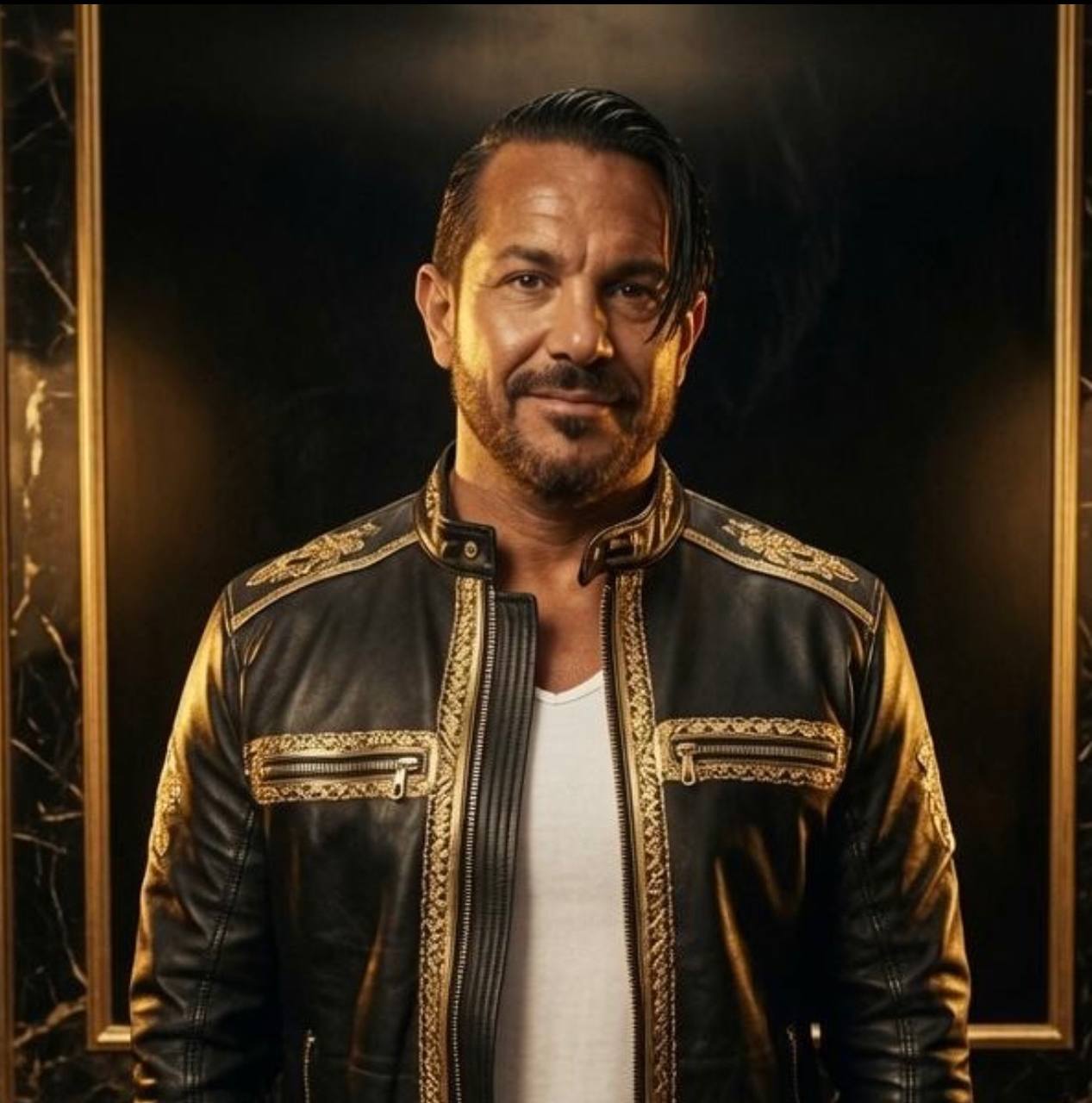
About Barak Schurr
Barak Schurr is a serial entrepreneur who built and exited a major ticketing platform before turning his attention to AI and content. He runs three AI-focused research sites and writes about the tools, workflows, and strategies that let solo creators build real channels — without a crew, a studio, or a Hollywood budget.
Email: [email protected]
More AI Resources for Your Business